
AI 内容创作 / 系统课时
前端交互与运行状态
前端交互与运行状态
本课把实时数字人前端拆成可控的状态机,并用一个浏览器示例串联麦克风录音、会话状态、字幕提示、音频播放和错误恢复。完成后,页面中的按钮、提示文本与媒体行为将由同一份状态驱动,避免重复提交、状态错乱和旧结果覆盖新会话。
学习目标
- 设计覆盖待机、录音、处理、播放和异常的前端状态机。
- 使用
MediaRecorder完成录音控制,并同步更新按钮、字幕与播放器。 - 定位权限、自动播放、迟到消息和资源未释放等常见问题。
交互状态设计
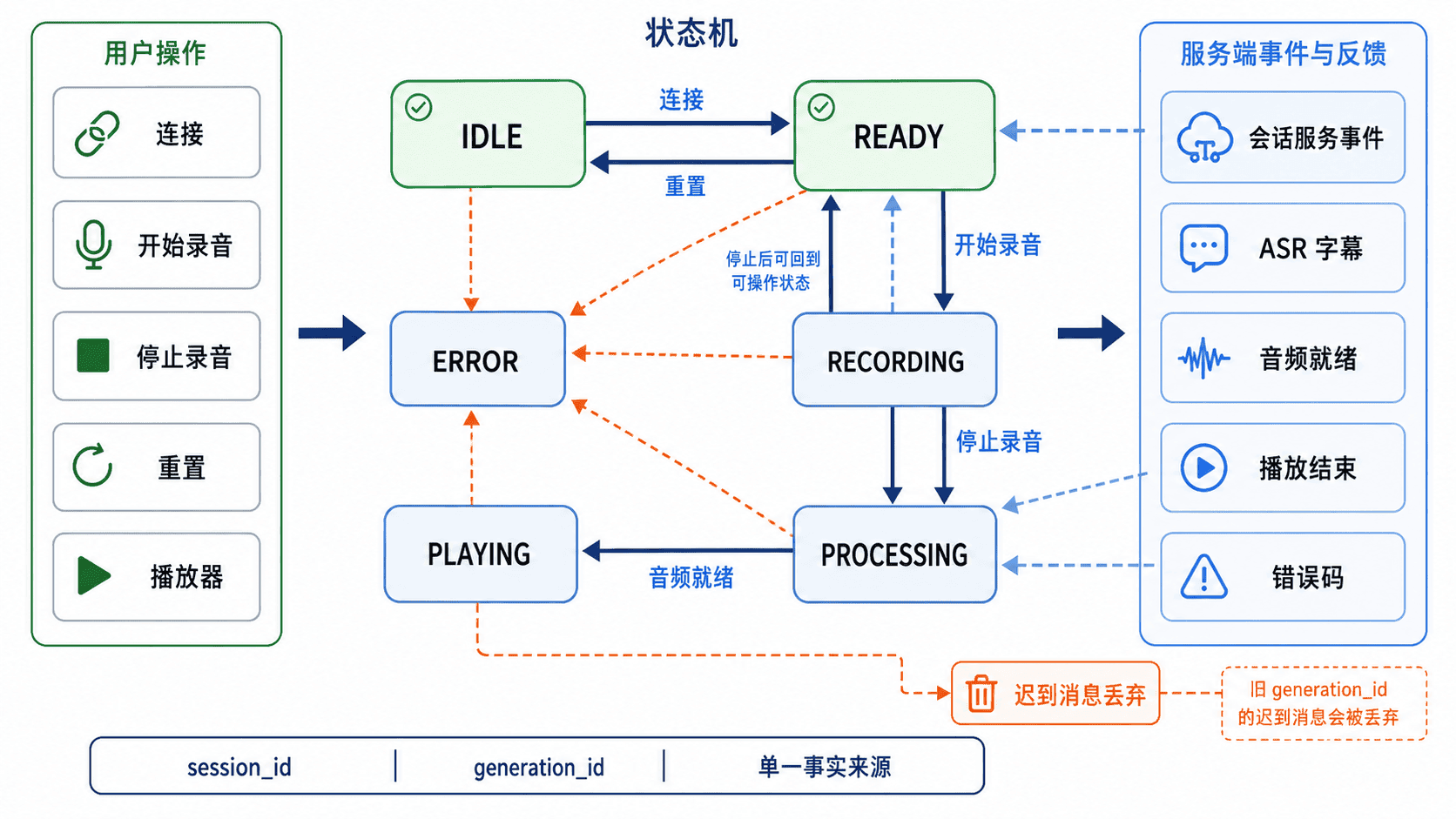
前端不应让每个按钮各自维护布尔变量,而应使用一个枚举状态作为单一事实来源。典型状态包括 待机、请求权限、录音、等待尾帧、处理、就绪、播放和异常。用户操作与服务端事件只负责触发迁移,界面渲染函数则依据当前状态统一决定按钮是否可用、提示文案如何显示以及是否允许播放。
已建立会话时,一次有效链路通常是 READY → REQUESTING → RECORDING → STOPPING → PROCESSING → READY → PLAYING → READY;尚未建连的页面也可以从 IDLE 直接请求录音权限。任何阶段失败都进入 ERROR,由重置操作清理媒体流、对象 URL 和临时字幕后回到 IDLE。生产环境还应把 session_id 与 generation_id 绑定到事件,收到旧生成任务的迟到消息时直接丢弃,防止上一轮结果覆盖当前轮次。
最小可运行实现
下面的单文件页面使用浏览器原生 MediaRecorder 录制麦克风音频,并把录音结果交给 <audio> 播放器。服务端识别过程用短暂延时模拟,重点验证状态迁移、控件联动、字幕更新和异常恢复。将代码保存为 frontend-runtime-demo.html。示例只本地录音与回放,每次最多录 30 秒,模拟响应不会上传音频。
<!doctype html>
<html lang="zh-CN">
<head>
    <meta charset="utf-8">
    <meta name="viewport" content="width=device-width, initial-scale=1">
    <title>数字人前端运行状态</title>
    <style>
        body { font-family: sans-serif; max-width: 720px; margin: 40px auto; line-height: 1.6; }
        button { margin-right: 8px; padding: 8px 14px; }
        #status { font-weight: 700; }
        #log { white-space: pre-wrap; background: #f6f8fa; padding: 12px; min-height: 120px; }
        audio { width: 100%; margin-top: 12px; }
    </style>
</head>
<body>
    <h1>数字人会话控制台</h1>
    <p>状态:<span id="status">待机</span></p>
    <p id="subtitle">字幕:等待录音</p>
    <button id="startButton">开始录音</button>
    <button id="stopButton">停止录音</button>
    <button id="resetButton">重置</button>
    <audio id="player" controls></audio>
    <pre id="log"></pre>

    <script>
        const State = Object.freeze({
            IDLE: "IDLE",
            READY: "READY",
            REQUESTING: "REQUESTING",
            RECORDING: "RECORDING",
            STOPPING: "STOPPING",
            PROCESSING: "PROCESSING",
            PLAYING: "PLAYING",
            ERROR: "ERROR"
        });

        const labels = {
            IDLE: "待机",
            READY: "就绪",
            REQUESTING: "等待录音权限",
            RECORDING: "录音中",
            STOPPING: "正在结束录音",
            PROCESSING: "处理中",
            PLAYING: "播放中",
            ERROR: "异常"
        };

        const statusElement = document.querySelector("#status");
        const subtitleElement = document.querySelector("#subtitle");
        const logElement = document.querySelector("#log");
        const startButton = document.querySelector("#startButton");
        const stopButton = document.querySelector("#stopButton");
        const resetButton = document.querySelector("#resetButton");
        const player = document.querySelector("#player");

        let state = State.IDLE;
        let generation = 0;
        let recorder = null;
        let stream = null;
        let objectUrl = null;
        let recordingTimer;
        let processingTimer;

        function appendLog(message) {
            logElement.textContent += "[" + new Date().toLocaleTimeString() + "] " + message + "\n";
        }

        function render() {
            statusElement.textContent = labels[state];
            startButton.disabled = ![State.IDLE, State.READY].includes(state);
            stopButton.disabled = state !== State.RECORDING;
        }

        function setState(next, reason) {
            appendLog(state + " -> " + next + ":" + reason);
            state = next;
            render();
        }

        function releaseCapture() {
            clearTimeout(recordingTimer);
            stream?.getTracks().forEach(track => track.stop());
            stream = null;
        }

        function clearPlayer() {
            const oldUrl = objectUrl;
            objectUrl = null;
            player.pause();
            player.removeAttribute("src");
            player.load();
            if (oldUrl) URL.revokeObjectURL(oldUrl);
        }

        async function startRecording() {
            if (![State.IDLE, State.READY].includes(state)) return;
            const turn = ++generation;
            setState(State.REQUESTING, "等待录音权限");
            clearPlayer();
            try {
                const acquired = await navigator.mediaDevices.getUserMedia({ audio: true });
                if (turn !== generation) {
                    acquired.getTracks().forEach(track => track.stop());
                    return;
                }
                stream = acquired;
                const active = new MediaRecorder(acquired);
                recorder = active;
                const chunks = [];
                active.addEventListener("dataavailable", event => {
                    if (turn === generation && event.data.size > 0) chunks.push(event.data);
                });
                active.addEventListener("error", () => {
                    if (turn !== generation) return;
                    generation++;
                    recorder = null;
                    releaseCapture();
                    setState(State.ERROR, "录音器错误");
                });
                active.addEventListener("stop", () => {
                    if (turn !== generation) return;
                    recorder = null;
                    releaseCapture();
                    const blob = new Blob(chunks, { type: active.mimeType });
                    if (!blob.size) {
                        setState(State.ERROR, "没有录音数据");
                        return;
                    }
                    setState(State.PROCESSING, "录音完成,等待模拟响应");
                    appendLog("录音大小:" + blob.size + " 字节");
                    processingTimer = setTimeout(() => {
                        if (turn !== generation) return;
                        objectUrl = URL.createObjectURL(blob);
                        player.src = objectUrl;
                        subtitleElement.textContent = "字幕:音频已接收,可点击播放器试听";
                        setState(State.READY, "媒体结果已就绪");
                    }, 800);
                });
                active.start();
                recordingTimer = setTimeout(stopRecording, 30_000);
                subtitleElement.textContent = "字幕:正在收音";
                setState(State.RECORDING, "用户开始录音");
            } catch (error) {
                if (turn !== generation) return;
                recorder = null;
                releaseCapture();
                subtitleElement.textContent = "错误:" + error.message;
                setState(State.ERROR, "无法开始录音");
            }
        }

        function stopRecording() {
            if (state !== State.RECORDING || recorder?.state !== "recording") return;
            setState(State.STOPPING, "等待最后的录音数据");
            recorder.stop();
            releaseCapture();
        }

        function resetSession() {
            generation++;
            clearTimeout(processingTimer);
            const active = recorder;
            recorder = null;
            if (active && active.state !== "inactive") active.stop();
            releaseCapture();
            clearPlayer();
            subtitleElement.textContent = "字幕:等待录音";
            logElement.textContent = "";
            setState(State.IDLE, "会话已重置");
        }

        const currentMedia = () => objectUrl && player.currentSrc === objectUrl;
        player.addEventListener("play", () => {
            if (state === State.READY && currentMedia()) setState(State.PLAYING, "播放器开始输出音频");
        });
        for (const eventName of ["pause", "ended"]) {
            player.addEventListener(eventName, () => {
                if (state === State.PLAYING && currentMedia()) setState(State.READY, "播放已暂停或结束");
            });
        }
        player.addEventListener("error", () => {
            if (currentMedia() && [State.READY, State.PLAYING].includes(state)) setState(State.ERROR, "播放器加载失败");
        });

        startButton.addEventListener("click", startRecording);
        stopButton.addEventListener("click", stopRecording);
        resetButton.addEventListener("click", resetSession);

        render();
    </script>
</body>
</html>
在文件所在目录启动本地静态服务器,然后访问终端显示的 http://127.0.0.1:<PORT>/frontend-runtime-demo.html。<PORT> 的实际值由命令参数决定。
python -m http.server 8000 --bind 127.0.0.1预期结果如下。录音字节数与时间戳会随设备和录音时长变化,因此使用占位符表示动态值。
初始状态:待机
点击“开始录音”:状态变为录音中,停止录音按钮可用
点击“停止录音”:状态依次变为处理中、就绪
字幕:音频已接收,可点击播放器试听
播放器开始播放:状态变为播放中
播放结束:状态回到就绪
日志包含:RECORDING -> STOPPING、STOPPING -> PROCESSING、PROCESSING -> READY、录音大小 <BYTES> 字节
验证与故障定位
验证时先检查状态迁移,再检查媒体资源。麦克风权限被拒绝时,页面应进入 ERROR 且保留可读错误信息;权限提示尚未返回时按钮应已禁用。重置后若旧权限请求晚返回,只释放该旧轨道;从处理中重置,旧计时器不得再写字幕或播放器。停止后应调用 track.stop(),重置时应撤销对象 URL,避免摄像头或麦克风指示灯持续亮起以及内存长期增长。
浏览器只允许在安全上下文中调用 getUserMedia(),本地开发应使用 localhost,线上必须使用 HTTPS。移动端自动播放通常要求用户手势,因此应把播放动作绑定到明确点击,或在播放器被浏览器规则阻止时显示“点击播放”提示。接入真实后端后,还要校验消息中的 session_id 与 generation_id,旧任务的字幕、音频和状态事件不得进入当前页面状态。
本课总结
- 使用单一枚举状态统一驱动按钮、字幕、播放器和错误提示,可以消除互相矛盾的界面状态。
- 录音结束、播放完成和异常都应有明确迁移,并在离开会话时释放媒体轨道与对象 URL。
- 实时系统必须用会话与生成标识过滤迟到消息,避免旧结果覆盖新交互。
下一课预告
下一课将进入“日志、指标与链路追踪”,把前端状态与后端各阶段耗时、GPU 资源和跨服务调用关联起来,为联调和故障定位建立统一证据链。