
游戏引擎 / 系统课时
用 Loader 事件更新资源进度条
用 Loader 事件更新资源进度条
素材还在下载时直接进入游戏场景,容易遇到纹理缺失或空白画面。本课基于 Phaser 4.2.1,在加载场景里用 Loader 事件绘制百分比进度条、显示正在处理的资源,并在加载完成且检查通过后进入游戏场景。
学习目标
- 区分整体进度、单文件进度、完成及失败事件。
- 在
preload()中创建并实时更新进度条。 - 只有资源加载成功且纹理存在时才切换场景。
理清 Loader 事件与场景时序
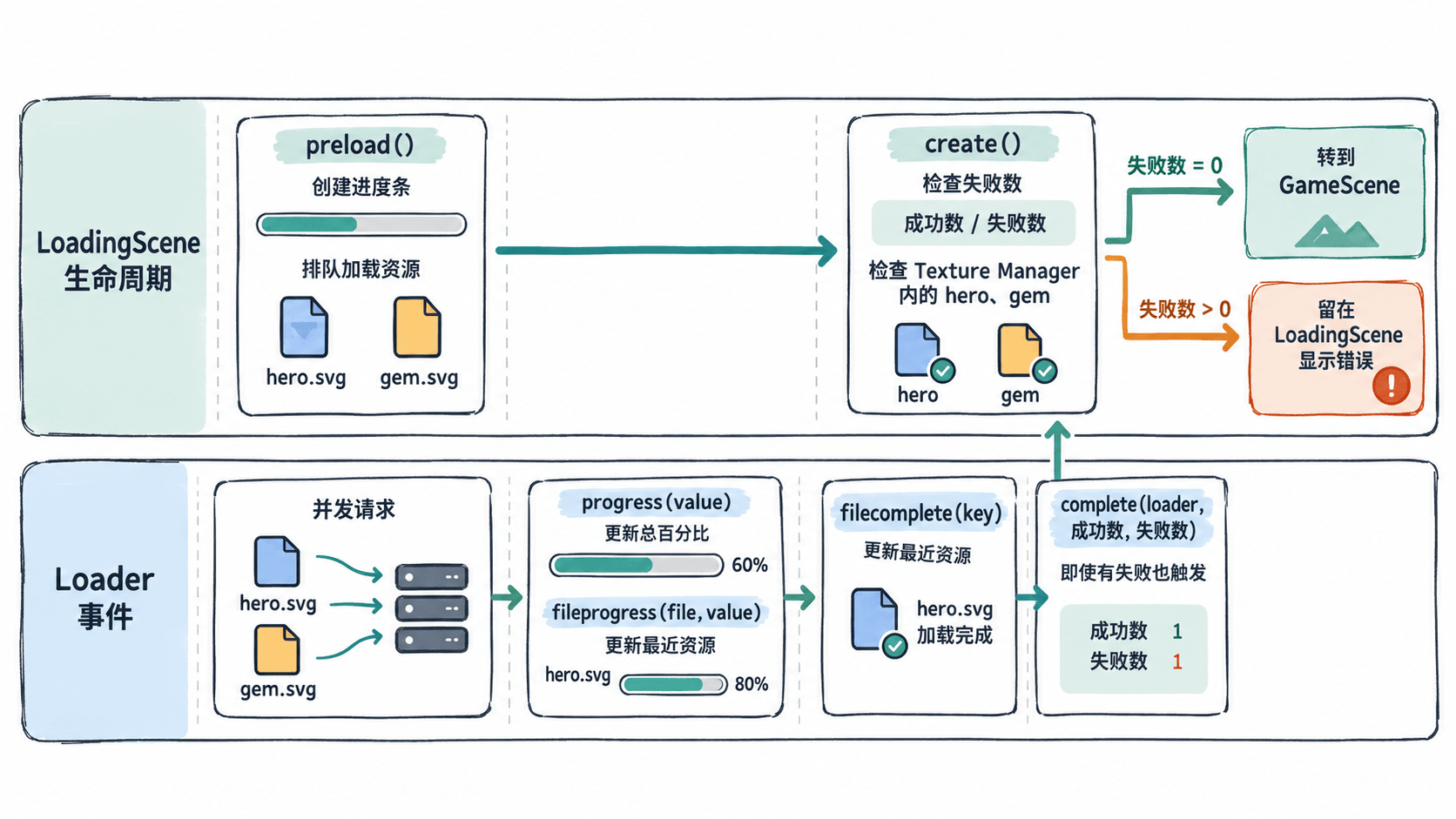
preload() 中向 this.load 添加资源后,Phaser 会自动启动 Loader;加载期间仍会渲染已创建的进度条对象。队列处理结束后才调用当前场景的 create(),因此无需在 preload() 里手动执行 this.load.start()。
| 事件 | 回调数据 | 用途 |
|---|---|---|
progress |
value,0~1 |
计算总体百分比 |
fileprogress |
file, value |
显示报告进度的文件键与单文件百分比 |
filecomplete |
key |
显示最近处理完成的资源 |
loaderror |
file |
记录加载失败的资源键 |
complete |
loader, totalComplete, totalFailed |
获取成功与失败数量 |
progress 主要反映加载队列的任务完成比例,不等于按字节加权的下载比例;动态加入新任务时可能回退。fileprogress 只在浏览器能够计算传输进度时发出,也可能完全缺席,因此用 filecomplete 补充提示。并行下载时,界面上的文件键表示最近报告进度的资源,不代表唯一正在加载的文件。
准备可运行的本地资源
使用 Node.js 20+,创建 Vite 原生 JavaScript 工程并固定 Phaser 版本。下面的命令在项目根目录执行:
npm create vite@latest phaser-loader-demo -- --template vanilla
cd phaser-loader-demo
npm install
npm install phaser@4.2.1
预期结果:项目包含 index.html、src/main.js 和已安装的 Phaser 4.2.1;Vite 默认页面有 id="app" 的容器,供 Phaser 挂载画布。
为了避免示例依赖外部图片,把下面的完整脚本保存为项目根目录的 make-assets.mjs,用它生成两张 SVG 测试图。
import { mkdirSync, writeFileSync } from 'node:fs';

mkdirSync('public/assets', { recursive: true });
for (const [key, color] of [
  ['hero', '#1ca89f'],
  ['gem', '#e7ab54']
]) {
  // 两个本地文件分别测试队列进度与纹理缓存
  const shape = key === 'hero'
    ? `<rect x="12" y="12" width="96" height="96" rx="16" fill="${color}"/>`
    : `<circle cx="60" cy="60" r="48" fill="${color}"/>`;
  const svg = `<svg xmlns="http://www.w3.org/2000/svg" width="120" height="120">${shape}</svg>`;
  writeFileSync(`public/assets/${key}.svg`, svg);
}
console.log('已生成 hero.svg 和 gem.svg');
预期结果:执行 node make-assets.mjs 后输出以下文本,并生成 public/assets/hero.svg 与 public/assets/gem.svg。
已生成 hero.svg 和 gem.svg监听进度并安全切换场景
将 src/main.js 替换为以下完整代码。进度条本身由 Phaser Graphics 绘制,不依赖尚未下载的纹理;监听器在队列加载前注册。complete 记录失败结果,真正的场景切换放在随后调用的 create() 中,避免 100% 进度时抢先跳转。
import Phaser from 'phaser';

class LoadingScene extends Phaser.Scene {
  constructor() {
    super('LoadingScene');
  }

  preload() {
    this.failed = false;
    this.add.rectangle(400, 225, 408, 28, 0x263a4e);
    const bar = this.add.graphics();
    const percent = this.add.text(400, 170, '加载中 0%', {
      fontSize: '24px', color: '#ffffff'
    }).setOrigin(0.5);
    const current = this.add.text(400, 275, '等待资源请求', {
      fontSize: '18px', color: '#cbd5e1'
    }).setOrigin(0.5);

    const onProgress = (ratio) => {
      const value = Phaser.Math.Clamp(ratio, 0, 1);
      bar.clear();
      bar.fillStyle(0x1db6aa);
      bar.fillRect(200, 215, 400 * value, 20);
      percent.setText(`加载中 ${Math.round(value * 100)}%`);
    };
    const onFileProgress = (file, ratio) => {
      current.setText(`当前资源:${file.key} ${Math.round(ratio * 100)}%`);
    };
    const onFileComplete = (key) => {
      current.setText(`最近完成:${key}`);
    };
    const onError = (file) => {
      this.failed = true;
      current.setText(`加载失败:${file.key}`);
    };

    this.load.on('progress', onProgress);
    this.load.on('fileprogress', onFileProgress);
    this.load.on('filecomplete', onFileComplete);
    this.load.on('loaderror', onError);
    this.load.once('complete', (_loader, ok, failed) => {
      // 完成事件包含失败的请求,不能直接当作全部成功
      this.failed = this.failed || failed > 0;
      percent.setText(this.failed ? '资源加载失败' : '资源准备完成');
      console.info(`加载完成:成功 ${ok},失败 ${failed}`);
      this.load.off('progress', onProgress);
      this.load.off('fileprogress', onFileProgress);
      this.load.off('filecomplete', onFileComplete);
      this.load.off('loaderror', onError);
    });

    this.load.svg('hero', '/assets/hero.svg');
    this.load.svg('gem', '/assets/gem.svg');
  }

  create() {
    // create 发生在 Loader 完成后;关键纹理缺失也禁止进入游戏
    if (this.failed || !this.textures.exists('hero') ||
        !this.textures.exists('gem')) {
      this.add.text(400, 325, '请检查资源请求并刷新页面', {
        fontSize: '18px', color: '#ffba70'
      }).setOrigin(0.5);
      return;
    }
    this.scene.start('GameScene');
  }
}

class GameScene extends Phaser.Scene {
  constructor() {
    super('GameScene');
  }

  create() {
    this.add.text(400, 100, '资源已就绪,进入游戏场景', {
      fontSize: '24px', color: '#ffffff'
    }).setOrigin(0.5);
    this.add.image(310, 225, 'hero');
    this.add.image(490, 225, 'gem');
  }
}

new Phaser.Game({
  type: Phaser.WEBGL,
  parent: 'app',
  width: 800,
  height: 450,
  backgroundColor: '#101827',
  scene: [LoadingScene, GameScene]
});
预期结果:资源均可访问时,浏览器控制台显示以下一行,画布最终呈现绿色圆角方块、橙色圆形和进入游戏场景的提示。
加载完成:成功 2,失败 0验证加载与错误分支
在项目根目录启动开发服务器:
npm run dev预期结果:终端提供本地访问地址;打开该地址后进入 GameScene。地址中的端口由 Vite 决定,实际值可能不同。
- 在浏览器开发者工具的 Network 面板开启 Disable cache,将 Throttling 调为 Slow 3G,刷新页面。观察百分比与资源提示随加载更新;两个 SVG 较小,正常网络下可能一闪而过。
- 把
this.load.svg('gem', '/assets/gem.svg')临时改成不存在的/assets/missing.svg,刷新后检查 Network 出现 404,控制台显示失败计数,画面停留在加载场景而不调用GameScene。 - 恢复正确路径,刷新并确认两张图正常显示。若控制台成功数为 2 但纹理仍未出现,检查
this.load.svg的键与this.add.image使用的键是否完全一致。