
游戏引擎 / 系统课时
用 Animation 切换角色动作
用 Animation 切换角色动作
角色在待机与行走之间切换时,需要让动作帧按固定速率连续播放,而不是每次更新都从第一帧开始。这里用 Phaser 4.2.1 制作一个无需外部图片的键盘控制示例:按左右方向键移动并播放行走动画,松开后恢复待机动画。
学习目标
- 用帧范围、
frameRate和repeat定义循环动作。 - 从键盘输入推导角色动作,并在状态变化时切换动画。
- 验证重复播放、动画键冲突和帧范围错误的表现。
动画帧与播放规则
在 Phaser 4.2.1 中,this.anims.create() 将动画定义注册到全局 Animation Manager;Sprite 自己的 anims 则保存当前动作、播放进度和暂停状态。多个角色可以共用一份 hero-walk 定义,但各自在不同帧上播放。
本例使用一张运行时绘制的 256×32 像素精灵表,每格 32×32,共 8 帧,索引从 0 开始。待机选 0~3 帧、每秒 4 帧,一轮 1 秒;行走选 4~7 帧、每秒 10 帧,一轮 0.4 秒。repeat: -1 表示持续循环,repeat: 0 才是播放一轮后结束。
创建并运行最小示例
在已安装 Node.js 和 npm 的环境中执行下列命令,建立 Vite 原生 JavaScript 工程并安装指定 Phaser 版本:
npm create vite@latest phaser-actions -- --template vanilla
cd phaser-actions
npm install
npm install phaser@4.2.1
npm run dev
预期终端会显示本地开发地址,实际端口可能不同:
Local: http://localhost:<PORT>/将 src/main.js 完整替换为下列代码;默认的 index.html 无须修改。本例在 Canvas 纹理中绘制演示角色,不依赖 public 目录中的图片。
import Phaser from 'phaser';

class ActionScene extends Phaser.Scene {
  constructor() {
    super('ActionScene');
  }

  create() {
    if (!this.textures.exists('hero')) {
      const sheet = this.textures.createCanvas('hero', 256, 32);
      const ctx = sheet.getContext();

      // 画出 8 个 32×32 帧,前 4 帧待机、后 4 帧行走。
      for (let i = 0; i < 8; i++) {
        const x = i * 32;
        const phase = i % 2;
        const bounce = i < 4 ? phase : 0;
        const stride = i >= 4 ? (phase ? 3 : -3) : 0;
        ctx.fillStyle = i < 4 ? '#3266aa' : '#0b9f87';
        ctx.fillRect(x + 10, 10 + bounce, 12, 12);
        ctx.fillStyle = '#f4c6a2';
        ctx.fillRect(x + 12, 4 + bounce, 8, 7);
        ctx.fillStyle = '#25364f';
        ctx.fillRect(x + 11 - stride, 22, 4, 7);
        ctx.fillRect(x + 18 + stride, 22, 4, 7);
      }

      sheet.refresh();
      this.textures.addSpriteSheet('', sheet, {
        frameWidth: 32,
        frameHeight: 32
      });
    }

    // 动画定义是全局资源,Scene 重新进入时避免重复注册。
    if (!this.anims.exists('hero-idle')) {
      this.anims.create({
        key: 'hero-idle',
        frames: this.anims.generateFrameNumbers('hero', { start: 0, end: 3 }),
        frameRate: 4,
        repeat: -1
      });
    }
    if (!this.anims.exists('hero-walk')) {
      this.anims.create({
        key: 'hero-walk',
        frames: this.anims.generateFrameNumbers('hero', { start: 4, end: 7 }),
        frameRate: 10,
        repeat: -1
      });
    }

    this.hero = this.add.sprite(320, 180, 'hero', 0).setScale(3);
    this.cursors = this.input.keyboard.createCursorKeys();
    this.add.text(16, 16, 'Left / Right: move', { color: '#334155' });
    this.hero.on('animationstart', anim => console.log('动作开始:', anim.key));
    this.hero.play('hero-idle');
  }

  update(_time, delta) {
    const direction = Number(this.cursors.right.isDown) -
      Number(this.cursors.left.isDown);
    const target = direction === 0 ? 'hero-idle' : 'hero-walk';

    // 只在目标动作变化时播放,避免每帧回到起始帧。
    if (this.hero.anims.currentAnim?.key !== target) {
      this.hero.play(target);
    }

    if (direction !== 0) {
      this.hero.x = Phaser.Math.Clamp(
        this.hero.x + direction * 120 * delta / 1000, 48, 592
      );
      this.hero.setFlipX(direction < 0);
    }
  }
}

new Phaser.Game({
  type: Phaser.AUTO,
  width: 640,
  height: 360,
  backgroundColor: '#f8fafc',
  pixelArt: true,
  scene: ActionScene
});
预期结果:打开终端给出的地址,页面出现一名像素角色;按住左、右方向键时角色按每秒 120 像素移动、双腿交替,松开后恢复待机轻微起伏。打开浏览器开发者工具 Console,依次按右键、松开,可看到:
动作开始: hero-idle
动作开始: hero-walk
动作开始: hero-idle
这三条只对应动作切换,而不是每次 update() 都输出;刷新页面后可重新验证。
为什么不能每帧直接重播
update() 随游戏帧率调用,例如画面每秒更新约 60 次,而行走动画仅每秒切换 10 帧。如果每次 update() 都执行 hero.play('hero-walk'),动画会不断重置到第一帧,视觉上可能像静止。
本例先把输入合成 direction:右键为 1、左键为 -1、无键或双键同时按下为 0;再映射到 hero-walk 或 hero-idle。只有 currentAnim.key 与目标键不同才调用 play()。对于循环动画,也可使用 hero.play(target, true),通过 ignoreIfPlaying 避免重启同一动作。
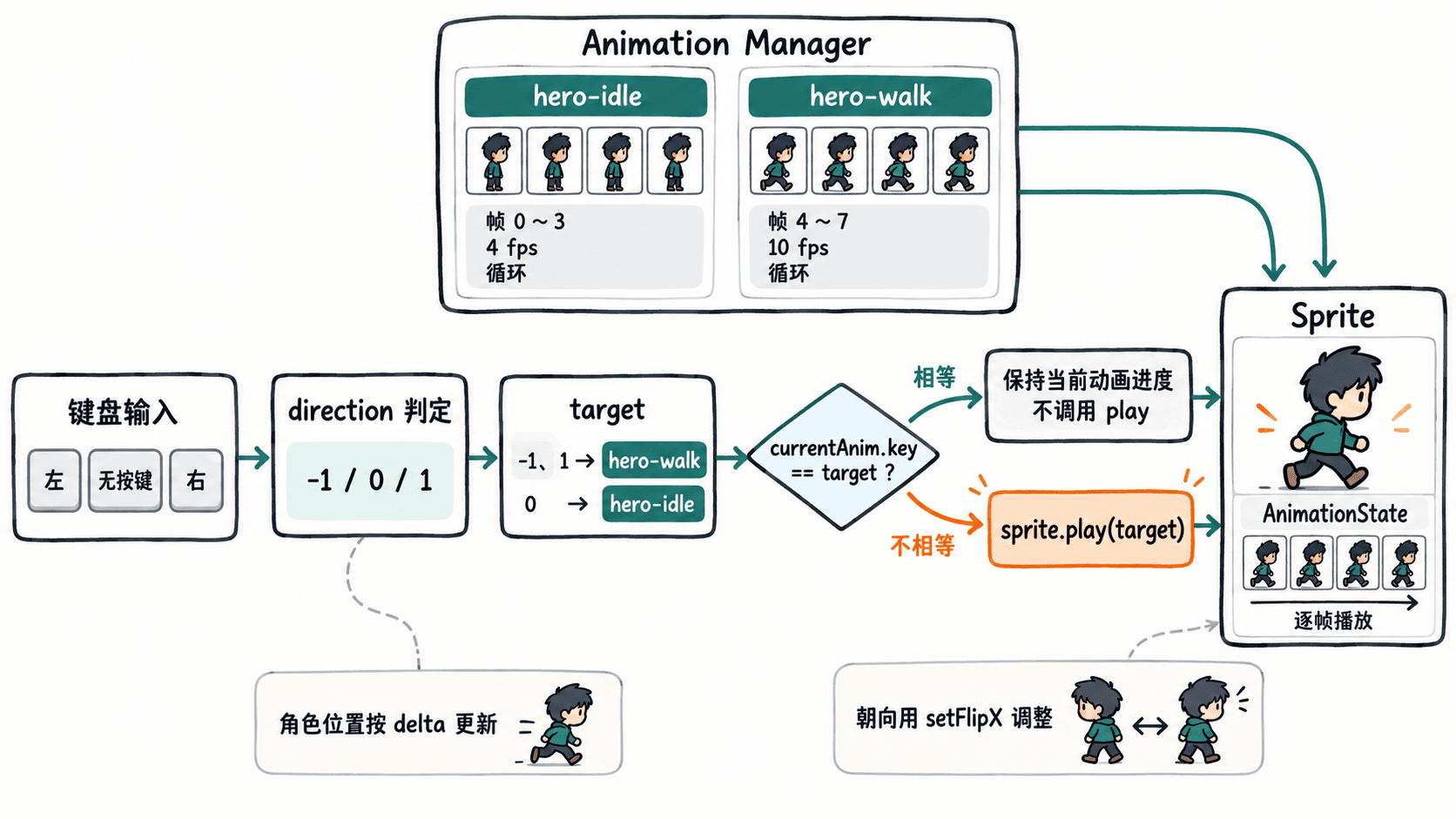
动画只控制画面帧,不负责角色实际位移。因此代码另外使用 delta / 1000 将毫秒换算成秒,并用 setFlipX(direction < 0) 镜像角色方向;即使帧率波动,移动速度也按约 120 像素/秒计算。
验收与错误定位
先按住右键约 2 秒:角色位置应变化约 240 像素(到边界时会被 Clamp 限制),行走帧持续循环;松开键后,角色停止平移但待机帧继续循环。连续按下、松开三次,Console 应每次只增加对应的动作切换日志,不应每帧刷屏。
| 现象 | 检查项与修正 |
|---|---|
| 角色不出现或显示缺失纹理 | 确认 hero 已创建,并在 addSpriteSheet 后检查 0~7 帧;外部图片版本还要核对 frameWidth、frameHeight。 |
| 角色总停在第一帧 | 检查是否在 update() 中无条件调用 play();改为比较 currentAnim.key 后切换。 |
| 动作创建时提示键已存在 | 全局 this.anims 在 Scene 间共享,注册前使用 this.anims.exists(key) 判断。 |
| 一次性攻击动作不触发完成事件 | repeat: -1 不会自然结束;攻击动画用 repeat: 0,再监听 animationcomplete。 |
正式角色可把 Canvas 演示图换成 preload() 中加载的精灵表,并继续沿用相同的动画注册和状态判断逻辑。