
命令行与文本处理 / 系统课时
实现系统指标采集
实现系统指标采集
本课把连通性、操作系统、内存、磁盘、服务和进程状态收敛为一个字段稳定的巡检对象。完成后,你可以直接把结果交给 JSON、CSV、日志平台或后续远程并行流程,而不必为成功、告警和失败分别编写处理逻辑。
学习目标
- 设计成功与失败都保持一致的巡检结果字段。
- 使用 CIM、连通性测试和对象投影采集关键系统指标。
- 根据磁盘与服务状态生成可验证的健康结论。
先固定巡检结果契约
巡检脚本最容易失控的地方不是“采不到数据”,而是不同主机返回不同字段。调用方一旦需要判断某个属性是否存在,后续导出、告警和汇总都会变复杂。因此应先定义顶层契约,再把磁盘、服务和进程作为固定结构的子对象数组。
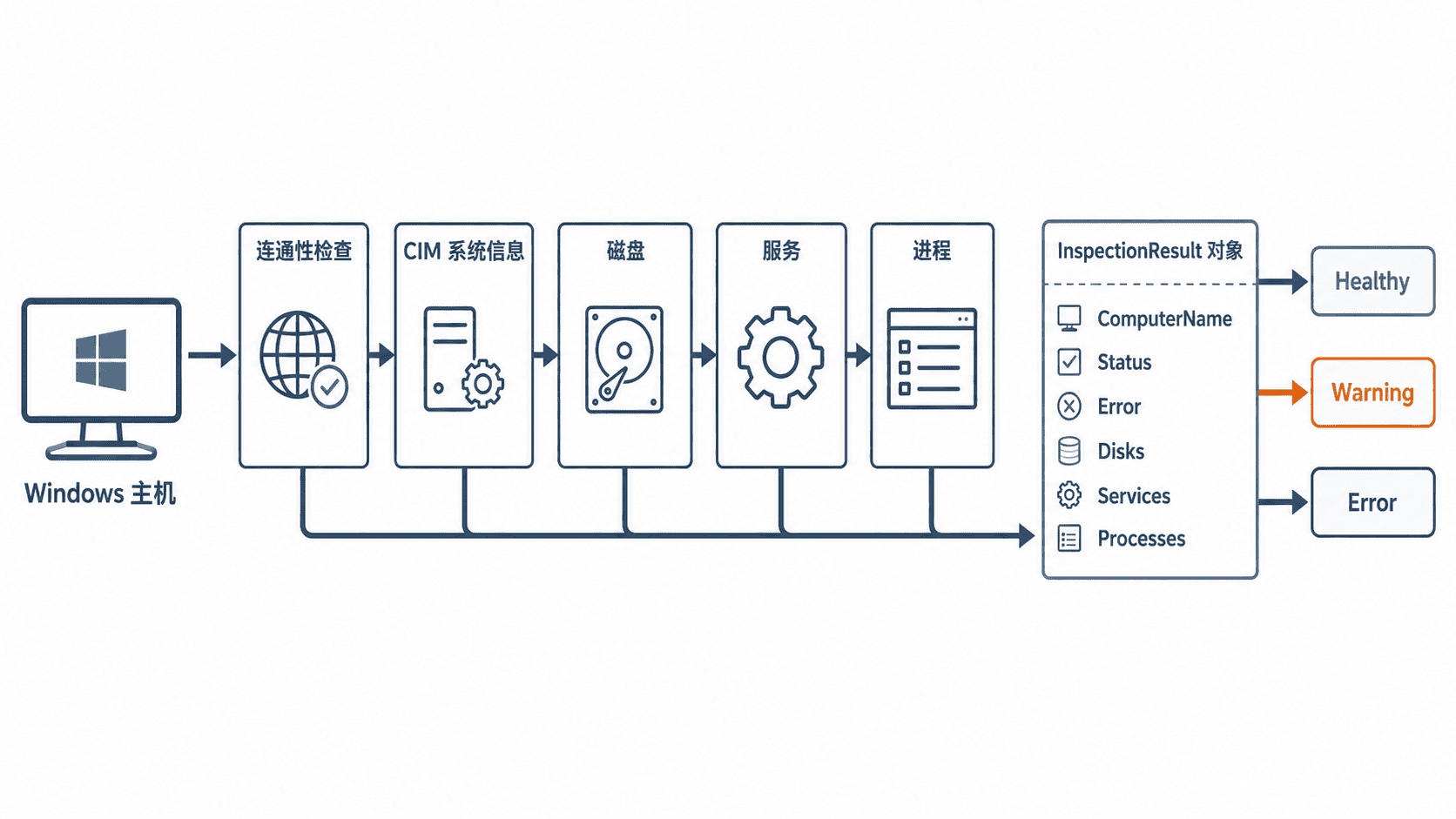
顶层至少保留主机名、采集时间、可达性、状态和错误信息。即使主机不可达,也返回同一组字段,只把无法采集的值设为 null 或空数组。这样消费者只需判断 Status,不必先检查对象结构。
| 字段 | 作用 | 失败时取值 |
|---|---|---|
ComputerName |
关联目标主机 | 仍保留原主机名 |
Reachable |
记录连通性判断 | false |
Status |
表示 Healthy、Warning 或 Error |
Error |
Error |
保存可诊断消息 | 错误文本 |
Disks、Services、Processes |
保存明细对象数组 | 空数组 |
编写单机采集函数
下面的脚本面向 Windows 主机。它默认采集本机;传入远程计算机名时,通过 CIM 会话读取数据。-SkipPing 用于 ICMP 被防火墙禁止但 CIM 仍可连接的环境,避免把“禁止 Ping”误判为“主机不可管理”。
Set-StrictMode -Version Latest
$ErrorActionPreference = 'Stop'

function Get-SystemInspection {
    [CmdletBinding()]
    param(
        [string]$ComputerName = $env:COMPUTERNAME,
        [string[]]$ServiceName = @('WinRM', 'W32Time'),
        [string[]]$ProcessName = @('pwsh', 'powershell'),
        [ValidateRange(1, 99)]
        [int]$MinDiskFreePercent = 15,
        [switch]$SkipPing
    )

    $startedAt = Get-Date
    $result = [ordered]@{
        ComputerName   = $ComputerName
        CollectedAt    = $startedAt.ToString('o')
        FinishedAt     = $null
        DurationSeconds = $null
        Reachable      = $false
        Status         = 'Error'
        Error          = $null
        OSCaption      = $null
        OSVersion      = $null
        LastBootTime   = $null
        UptimeHours    = $null
        MemoryTotalGB  = $null
        MemoryFreeGB   = $null
        Disks          = @()
        Services       = @()
        Processes      = @()
    }

    $localNames = @('.', 'localhost', $env:COMPUTERNAME)
    $isLocal = $ComputerName -in $localNames
    $cimSession = $null

    try {
        # Ping 只作为前置快速判断;被策略禁止时可显式跳过。
        if ($isLocal -or $SkipPing) {
            $result.Reachable = $true
        }
        else {
            $result.Reachable = Test-Connection `
                -TargetName $ComputerName `
                -Count 1 `
                -Quiet `
                -ErrorAction SilentlyContinue
        }

        if (-not $result.Reachable) {
            throw "Host '$ComputerName' did not respond to the connectivity check."
        }

        if (-not $isLocal) {
            $cimSession = New-CimSession -ComputerName $ComputerName
        }

        $cimArgs = @{}
        if ($null -ne $cimSession) {
            $cimArgs.CimSession = $cimSession
        }

        $os = Get-CimInstance -ClassName Win32_OperatingSystem @cimArgs
        $computer = Get-CimInstance -ClassName Win32_ComputerSystem @cimArgs

        $diskRows = @(
            Get-CimInstance `
                -ClassName Win32_LogicalDisk `
                -Filter 'DriveType = 3' `
                @cimArgs |
            ForEach-Object {
                $size = [double]$_.Size
                $free = [double]$_.FreeSpace
                [pscustomobject][ordered]@{
                    Name        = $_.DeviceID
                    SizeGB      = [math]::Round($size / 1GB, 2)
                    FreeGB      = [math]::Round($free / 1GB, 2)
                    FreePercent = if ($size -gt 0) {
                        [math]::Round(($free / $size) * 100, 2)
                    }
                    else {
                        0
                    }
                }
            }
        )

        $serviceRows = @(
            foreach ($name in $ServiceName) {
                $safeName = $name.Replace("'", "''")
                $service = Get-CimInstance `
                    -ClassName Win32_Service `
                    -Filter "Name = '$safeName'" `
                    @cimArgs `
                    -ErrorAction SilentlyContinue

                [pscustomobject][ordered]@{
                    Name      = $name
                    Found     = $null -ne $service
                    State     = if ($null -ne $service) { $service.State } else { $null }
                    StartMode = if ($null -ne $service) { $service.StartMode } else { $null }
                }
            }
        )

        # 一次读取进程列表,再按关注名称聚合,避免重复远程查询。
        $allProcesses = @(Get-CimInstance -ClassName Win32_Process @cimArgs)
        $processRows = @(
            foreach ($name in $ProcessName) {
                $matched = @(
                    $allProcesses | Where-Object {
                        [IO.Path]::GetFileNameWithoutExtension($_.Name) -ieq $name
                    }
                )

                [pscustomobject][ordered]@{
                    Name    = $name
                    Running = $matched.Count -gt 0
                    Count   = $matched.Count
                }
            }
        )

        $result.OSCaption = $os.Caption
        $result.OSVersion = $os.Version
        $result.LastBootTime = $os.LastBootUpTime.ToString('o')
        $result.UptimeHours = [math]::Round(
            ((Get-Date) - $os.LastBootUpTime).TotalHours,
            2
        )
        $result.MemoryTotalGB = [math]::Round(
            [double]$computer.TotalPhysicalMemory / 1GB,
            2
        )
        $result.MemoryFreeGB = [math]::Round(
            ([double]$os.FreePhysicalMemory * 1KB) / 1GB,
            2
        )
        $result.Disks = $diskRows
        $result.Services = $serviceRows
        $result.Processes = $processRows

        $hasDiskWarning = @(
            $diskRows | Where-Object {
                $_.FreePercent -lt $MinDiskFreePercent
            }
        ).Count -gt 0

        $hasServiceWarning = @(
            $serviceRows | Where-Object {
                -not $_.Found -or $_.State -ne 'Running'
            }
        ).Count -gt 0

        $result.Status = if ($hasDiskWarning -or $hasServiceWarning) {
            'Warning'
        }
        else {
            'Healthy'
        }
    }
    catch {
        $result.Status = 'Error'
        $result.Error = $_.Exception.Message
    }
    finally {
        if ($null -ne $cimSession) {
            Remove-CimSession -CimSession $cimSession
        }

        $finishedAt = Get-Date
        $result.FinishedAt = $finishedAt.ToString('o')
        $result.DurationSeconds = [math]::Round(
            ($finishedAt - $startedAt).TotalSeconds,
            2
        )
    }

    [pscustomobject]$result
}

Get-SystemInspection |
    ConvertTo-Json -Depth 5
预期输出如下。主机名、时间、系统版本和容量会随实际环境变化。
{
  "ComputerName": "<HOST>",
  "CollectedAt": "<TIME>",
  "FinishedAt": "<TIME>",
  "DurationSeconds": 0.31,
  "Reachable": true,
  "Status": "Healthy",
  "Error": null,
  "OSCaption": "Microsoft Windows 11 Enterprise",
  "OSVersion": "10.0.26100",
  "LastBootTime": "<TIME>",
  "UptimeHours": 42.67,
  "MemoryTotalGB": 32.0,
  "MemoryFreeGB": 18.45,
  "Disks": [
    {
      "Name": "C:",
      "SizeGB": 476.15,
      "FreeGB": 238.07,
      "FreePercent": 50.0
    }
  ],
  "Services": [
    {
      "Name": "WinRM",
      "Found": true,
      "State": "Running",
      "StartMode": "Auto"
    }
  ],
  "Processes": [
    {
      "Name": "pwsh",
      "Running": true,
      "Count": 1
    }
  ]
}
验证字段与健康状态
先检查对象字段,而不是只看格式化后的终端表格。可将结果保存到变量后执行 $result.PSObject.Properties.Name,确认成功、告警和错误路径都包含相同属性。随后分别调低磁盘阈值、填写不存在的服务名和不可达主机,验证 Healthy、Warning、Error 三条路径。
Test-Connection 只能证明 ICMP 是否得到响应,不能证明 WinRM、CIM 或业务服务可用。生产巡检应把连通性、管理通道和业务端口视为不同检查项;若网络策略禁止 ICMP,应使用 -SkipPing,再以 CIM 连接结果作为管理可达性的依据。
常见失败与修复
远程 CIM 失败时,先检查名称解析、凭据、WinRM 配置和防火墙规则,不要直接扩大权限。服务或进程不存在不应抛出异常,而应以 Found = false 或 Running = false 返回,这正是稳定结果对象的价值。
磁盘阈值只是健康规则的一部分。实际项目可继续加入 CPU、事件日志和业务端口,但应保持顶层契约不变,并为新增明细定义固定字段,避免同一版本中对象形状随主机而变化。