
命令行与文本处理 / 系统课时
完成第一个自动化任务
完成第一个自动化任务
本课把零散的本机信息查询整理成一个可重复执行的脚本。你将一次性生成脚本文件、运行两次采集任务,并比较关键字段,验证自动化是否具备固定步骤、稳定结构和可复现结果。
学习目标
- 把交互命令整理为带参数的 PowerShell 脚本
- 将本机信息保存为结构稳定的 JSON 文件
- 通过重复执行和结果比较验证自动化效果
明确任务与验收标准
本次任务采集计算机名、当前用户、操作系统、处理器数量、PowerShell 版本和当前目录。脚本必须允许指定输出路径,并自动创建缺失目录;连续运行两次后,字段结构与机器身份应一致,采集时间允许不同。
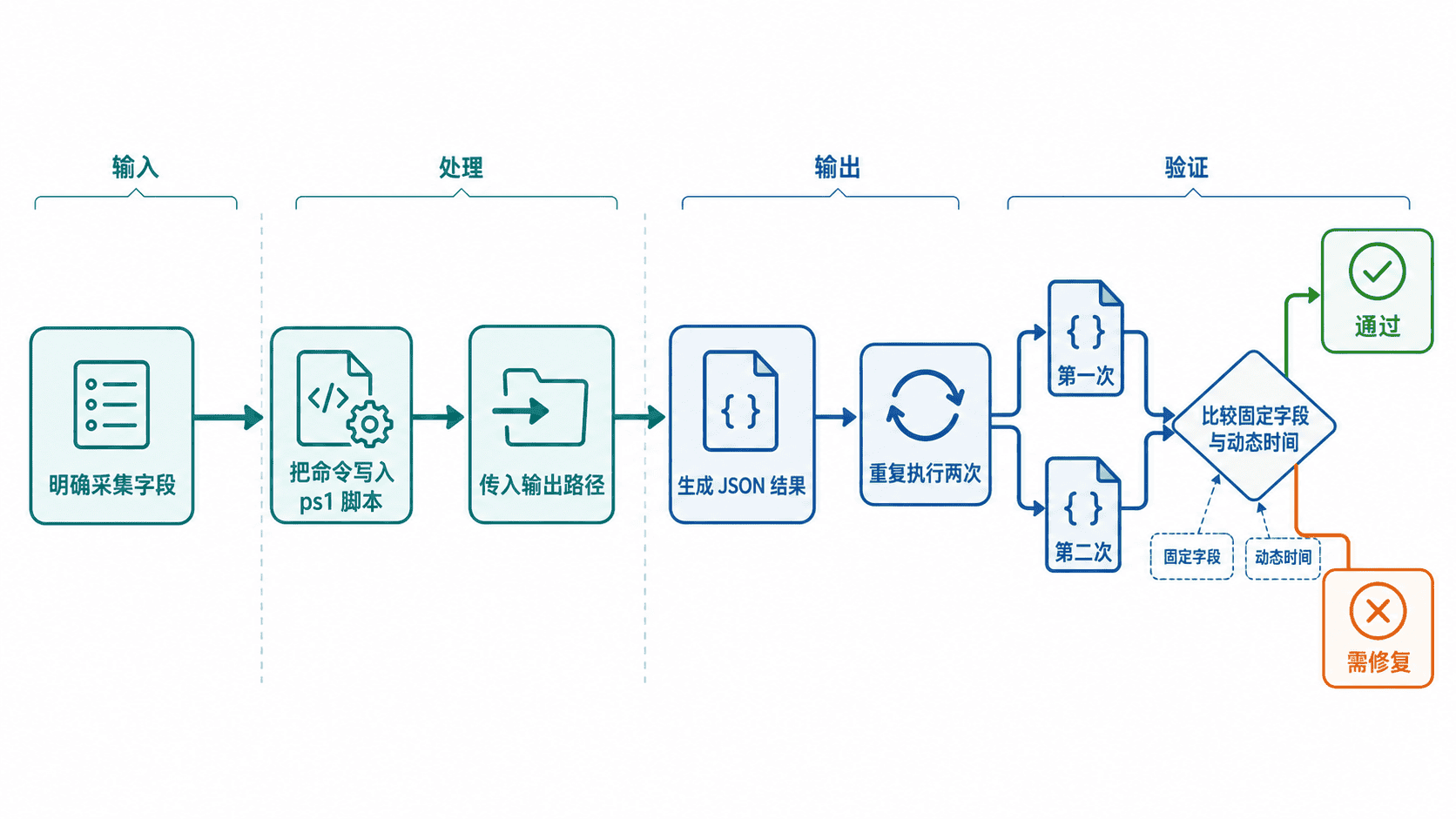
自动化的价值不只是“少敲几次命令”,而是把操作顺序、输出字段和失败条件固化下来。这样换一个时间或换一个操作者执行,得到的结果仍然可以比较和审计。
生成并运行脚本
在一个可写目录中执行下面的完整示例。它会创建 Get-SystemSnapshot.ps1,分别生成两份快照,再比较机器身份、字段结构和采集时间。
$workDirectory = Join-Path (Get-Location) 'first-automation'
New-Item -ItemType Directory -Path $workDirectory -Force | Out-Null
$scriptPath = Join-Path $workDirectory 'Get-SystemSnapshot.ps1'

@'
param(
    [Parameter(Mandatory)]
    [string]$OutputPath
)

$targetDirectory = Split-Path -Parent $OutputPath
if ($targetDirectory) {
    New-Item -ItemType Directory -Path $targetDirectory -Force | Out-Null
}

# 使用跨平台的 .NET API,避免依赖仅 Windows 可用的 CIM 类。
$snapshot = [ordered]@{
    CollectedAt       = (Get-Date).ToString('o')
    ComputerName      = [Environment]::MachineName
    UserName          = [Environment]::UserName
    OSDescription     = [System.Runtime.InteropServices.RuntimeInformation]::OSDescription
    OSArchitecture    = [System.Runtime.InteropServices.RuntimeInformation]::OSArchitecture.ToString()
    ProcessorCount    = [Environment]::ProcessorCount
    PowerShellVersion = $PSVersionTable.PSVersion.ToString()
    CurrentDirectory  = (Get-Location).Path
}

$snapshot |
    ConvertTo-Json |
    Set-Content -Path $OutputPath -Encoding utf8
'@ | Set-Content -Path $scriptPath -Encoding utf8

$firstPath = Join-Path $workDirectory 'snapshot-1.json'
$secondPath = Join-Path $workDirectory 'snapshot-2.json'

& $scriptPath -OutputPath $firstPath
Start-Sleep -Milliseconds 50
& $scriptPath -OutputPath $secondPath

$first = Get-Content -Path $firstPath -Raw | ConvertFrom-Json
$second = Get-Content -Path $secondPath -Raw | ConvertFrom-Json

[pscustomobject]@{
    ScriptExists       = Test-Path $scriptPath
    TwoFilesCreated    = (Test-Path $firstPath) -and (Test-Path $secondPath)
    SameComputer       = $first.ComputerName -eq $second.ComputerName
    SameFieldStructure = (($first.PSObject.Properties.Name -join ',') -eq
                          ($second.PSObject.Properties.Name -join ','))
    DifferentTimestamp = $first.CollectedAt -ne $second.CollectedAt
} | Format-List
预期输出
ScriptExists       : True
TwoFilesCreated    : True
SameComputer       : True
SameFieldStructure : True
DifferentTimestamp : True
脚本文件和快照文件会写入当前目录下的 first-automation 文件夹。实际路径、操作系统描述、版本号和时间属于动态值,查看 JSON 时可能与其他机器不同。
检查生成结果
打开任意一份快照,可以看到固定字段组成的 JSON 对象。CollectedAt 每次运行都会变化,而 ComputerName、系统架构等字段在同一台机器上通常保持稳定。
Get-Content -Path $firstPath -Raw预期输出
{
  "CollectedAt": "<TIME>",
  "ComputerName": "<COMPUTER>",
  "UserName": "<USER>",
  "OSDescription": "<OS>",
  "OSArchitecture": "<ARCH>",
  "ProcessorCount": <COUNT>,
  "PowerShellVersion": "<VERSION>",
  "CurrentDirectory": "<PATH>"
}
若 SameFieldStructure 为 False,应检查脚本是否在两次运行之间被修改。若文件没有生成,先确认目标目录可写,再查看错误中的路径和权限信息,不要直接改用管理员权限掩盖问题。
让自动化保持可复现
可复现不等于所有值完全相同。时间、进程号、临时路径等动态字段可以变化,但采集步骤、字段名称、数据类型和输出位置规则应保持稳定。比较时要区分“预期变化”与“异常变化”。
脚本还应避免依赖交互输入、当前窗口中的临时变量或未声明模块。本例通过 param 明确输入,通过完整路径写文件,并在脚本内部创建目录,因此可以在新会话中独立执行。