
命令行与文本处理 / 系统课时
接入持续集成流程
接入持续集成流程
本课把本地可运行的 PowerShell 模块接入持续集成。你将建立静态检查、Pester 测试、自动版本生成和模块打包四个阶段,使提交或合并请求在进入主分支前得到一致验证。
学习目标
- 设计可失败、可追踪的 PowerShell 构建脚本
- 在持续集成中运行 PSScriptAnalyzer 与 Pester
- 生成版本号并输出可下载的模块压缩包
设计流水线阶段
持续集成应把质量门禁拆成顺序明确的阶段:先检查代码,再运行测试,随后生成版本并打包。任何阶段失败都必须返回非零状态,阻止后续发布伪成功的制品。
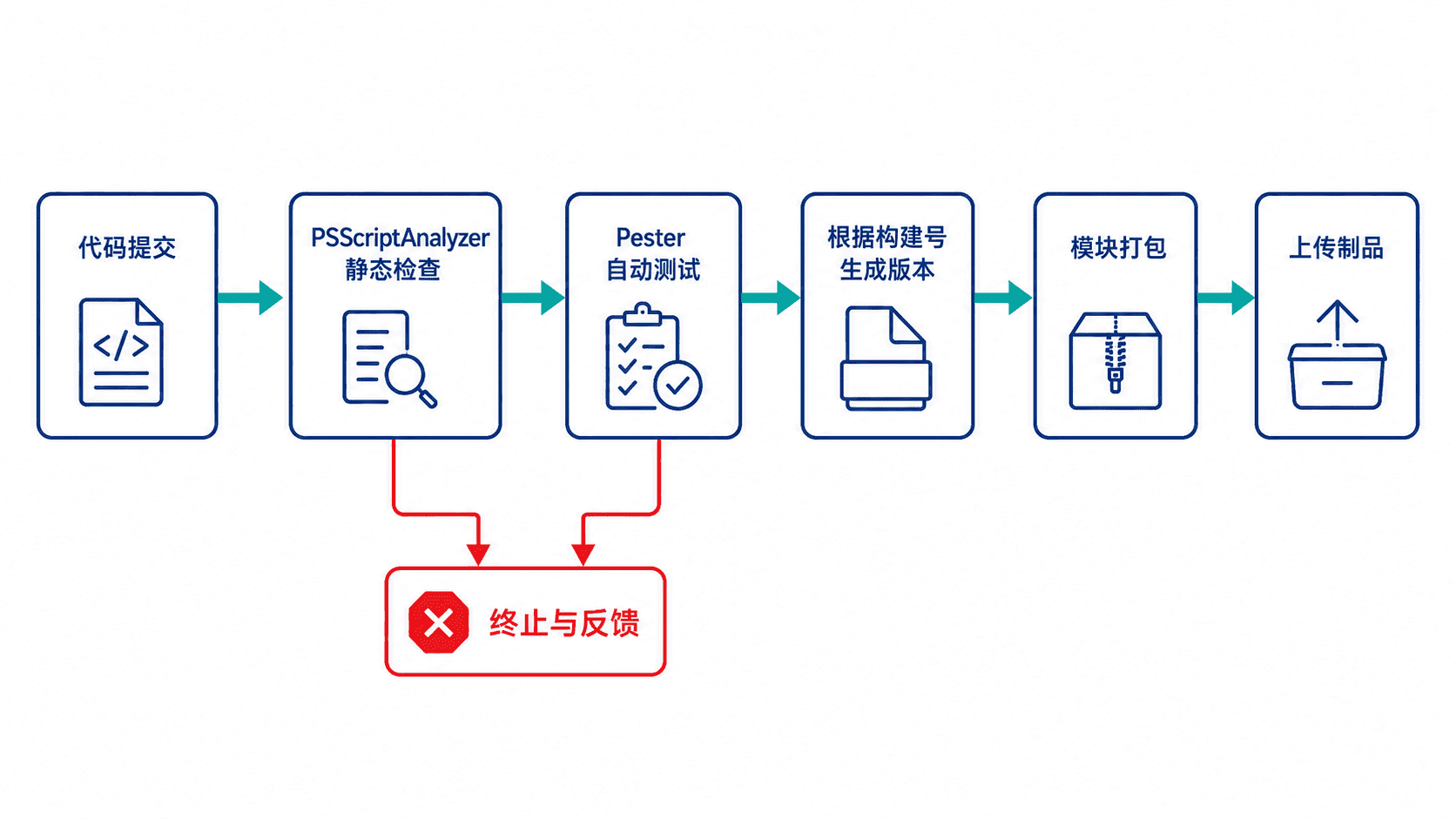
一个最小仓库可包含 src/UtilityTools/UtilityTools.psm1、tests/UtilityTools.Tests.ps1、build.ps1 和 .github/workflows/ci.yml。构建脚本负责统一执行规则,工作流只负责准备环境并调用它,避免本地与 CI 使用两套命令。
准备最小模块与测试
模块文件提供一个可测试的公开函数。
function Get-Greeting {
    [CmdletBinding()]
    param(
        [Parameter(Mandatory)]
        [string]$Name
    )

    "Hello, $Name"
}

Export-ModuleMember -Function Get-Greeting
测试文件导入模块并验证输出。该文件应保存为 tests/UtilityTools.Tests.ps1。
BeforeAll {
    Import-Module "$PSScriptRoot/../src/UtilityTools/UtilityTools.psm1" -Force
}

Describe 'Get-Greeting' {
    It 'returns a greeting for the supplied name' {
        Get-Greeting -Name 'Anystack' | Should -Be 'Hello, Anystack'
    }
}
该测试由后续构建脚本统一执行。断言不成立时,Pester 会把失败计数返回给构建脚本,由构建脚本终止流水线。
编写统一构建脚本
下面的 build.ps1 依次执行静态检查和测试,然后把构建号转换为模块版本 1.0.<构建号>,生成模块清单并压缩制品。它依赖 Pester 5 和 PSScriptAnalyzer,任一质量检查失败都会抛出异常。
param(
    [ValidateRange(0, 999999)]
    [int]$BuildNumber = 0
)

Set-StrictMode -Version Latest
$ErrorActionPreference = 'Stop'

$root = Split-Path -Parent $MyInvocation.MyCommand.Path
$moduleSource = Join-Path $root 'src/UtilityTools'
$testsPath = Join-Path $root 'tests'
$distRoot = Join-Path $root 'dist'
$moduleDist = Join-Path $distRoot 'UtilityTools'

$analysisIssues = @(Invoke-ScriptAnalyzer -Path $moduleSource -Recurse)
if ($analysisIssues.Count -gt 0) {
    $analysisIssues | Format-Table -AutoSize | Out-String | Write-Output
    throw "PSScriptAnalyzer found $($analysisIssues.Count) issue(s)."
}

$testResult = Invoke-Pester -Path $testsPath -PassThru -Output None
if ($testResult.FailedCount -gt 0) {
    throw "Pester reported $($testResult.FailedCount) failed test(s)."
}

Write-Output "TESTS_PASSED=$($testResult.PassedCount)"
Write-Output "TESTS_FAILED=$($testResult.FailedCount)"

if (Test-Path $distRoot) {
    Remove-Item $distRoot -Recurse -Force
}
New-Item -ItemType Directory -Path $moduleDist -Force | Out-Null
Copy-Item "$moduleSource/*" $moduleDist -Recurse -Force

$version = [version]"1.0.$BuildNumber"
$manifestPath = Join-Path $moduleDist 'UtilityTools.psd1'

New-ModuleManifest `
    -Path $manifestPath `
    -RootModule 'UtilityTools.psm1' `
    -ModuleVersion $version `
    -FunctionsToExport 'Get-Greeting'

$archivePath = Join-Path $distRoot "UtilityTools-$version.zip"
Compress-Archive -Path "$moduleDist/*" -DestinationPath $archivePath -Force

Write-Output "PACKAGE=$archivePath"
Write-Output "VERSION=$version"
本地安装依赖并执行构建,能够提前复现 CI 行为。
Set-PSRepository PSGallery -InstallationPolicy Trusted
Install-Module Pester -MinimumVersion 5.5.0 -Scope CurrentUser -Force
Install-Module PSScriptAnalyzer -Scope CurrentUser -Force

./build.ps1 -BuildNumber 42
预期输出会包含测试通过信息,以及生成的版本和压缩包路径;实际路径可能不同。
TESTS_PASSED=1
TESTS_FAILED=0
PACKAGE=<PATH>/dist/UtilityTools-1.0.42.zip
VERSION=1.0.42
配置 GitHub Actions
工作流在提交和合并请求时安装测试工具,调用同一个构建脚本,并上传生成的 ZIP 制品。以下配置应保存为 .github/workflows/ci.yml。
name: powershell-ci

on:
  push:
  pull_request:

jobs:
  validate:
    runs-on: ubuntu-latest

    steps:
      - name: Checkout repository
        uses: actions/checkout@v4

      - name: Install PowerShell test tools
        shell: pwsh
        run: |
          Set-PSRepository PSGallery -InstallationPolicy Trusted
          Install-Module Pester -MinimumVersion 5.5.0 -Scope CurrentUser -Force
          Install-Module PSScriptAnalyzer -Scope CurrentUser -Force

      - name: Validate and package
        shell: pwsh
        run: ./build.ps1 -BuildNumber ${{ github.run_number }}

      - name: Upload package
        uses: actions/upload-artifact@v4
        with:
          name: UtilityTools
          path: dist/*.zip
配置生效后,每次触发都会产生唯一构建号。验证方法是查看工作流运行记录:静态检查或测试失败时任务应停止;全部通过时,运行详情中应出现名为 UtilityTools 的制品。
设置工程化边界
不要在测试失败后继续打包,也不要把密钥直接写入工作流。发布到私有仓库或 PowerShell Gallery 时,应通过平台机密变量注入令牌,并把“验证”和“发布”拆成不同作业,只有受保护分支或版本标签才能进入发布阶段。
依赖版本也应显式约束。最低版本能保证所需 API 存在;若团队要求完全可重复构建,可进一步固定模块版本,并定期通过专门变更升级,而不是在每次流水线中静默获取未知版本。