
命令行与文本处理 / 系统课时
管理输出流与重定向
管理输出流与重定向
PowerShell 不把所有消息都当成普通文本,而是将成功结果、错误、警告等内容放入不同输出流。只有先分清流的编号和去向,才能准确保存日志、合并错误、保持管道可处理性,并避免把诊断信息误当业务数据。
学习目标
- 识别 PowerShell 六个可重定向输出流及其编号。
- 使用覆盖、追加、分流和合并语法控制输出去向。
- 用
Tee-Object在继续传递对象的同时保存副本。
认识六个输出流
PowerShell 的重定向运算符以数字标识输出流。成功流是管道默认处理的对象流,其余流主要承载诊断或状态信息;进度显示不在这六个可重定向流中。
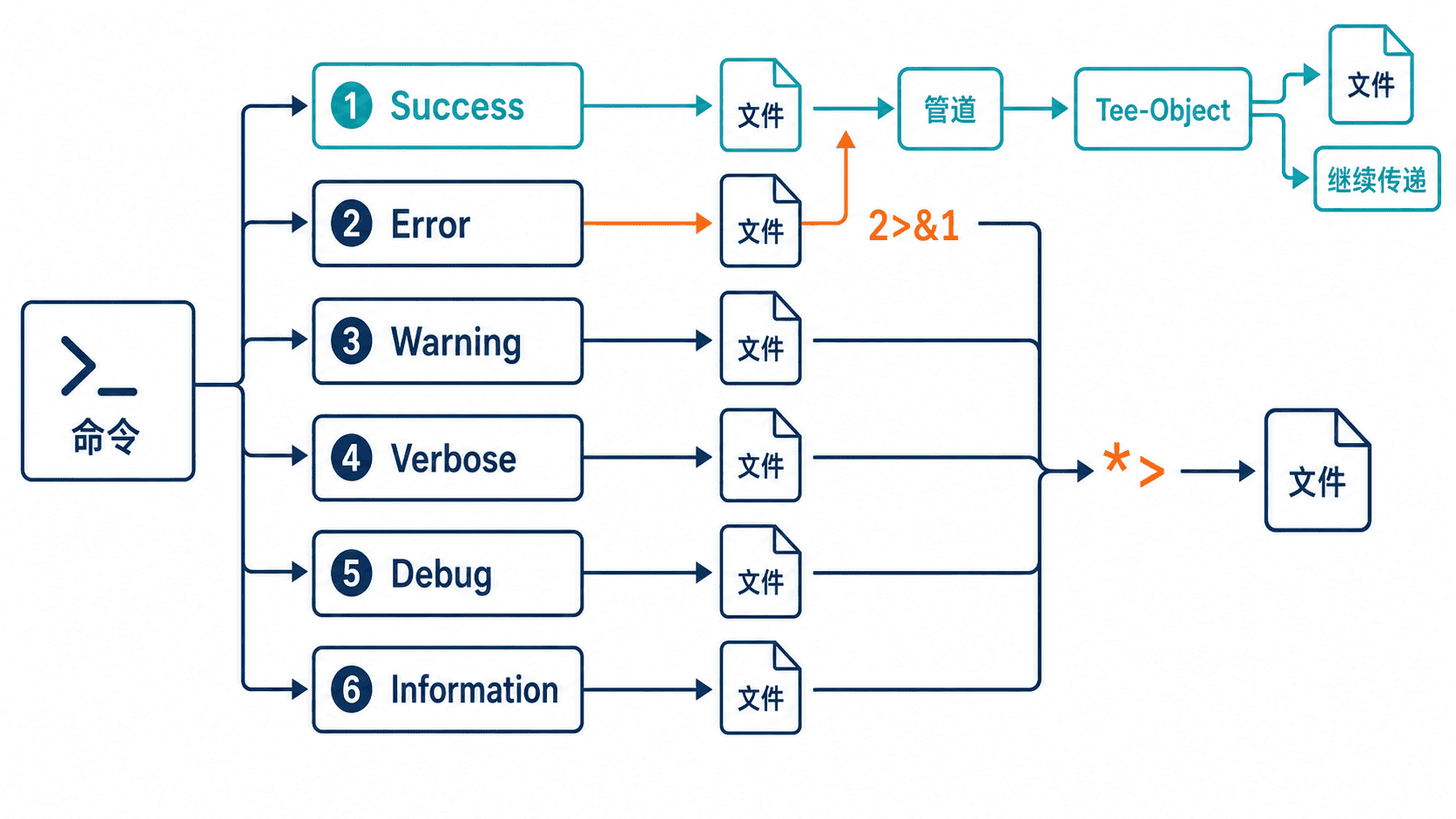
| 编号 | 流名称 | 常见产生方式 |
|---|---|---|
| 1 | Success | Write-Output、命令返回对象 |
| 2 | Error | Write-Error、非终止错误 |
| 3 | Warning | Write-Warning |
| 4 | Verbose | Write-Verbose |
| 5 | Debug | Write-Debug |
| 6 | Information | Write-Information、Write-Host |
重定向、合并并验证结果
> 覆盖文件,>> 追加文件;省略流编号时默认处理成功流。例如 1> success.log 保存成功流,2> error.log 单独保存错误流,2>&1 先把错误流并入成功流,再交给后续管道或重定向。
*> all.log 会把六个可重定向流全部写入同一文件。合并顺序很重要:2>&1 | Tee-Object ... 表示先合并,再让 Tee-Object 同时看到成功与错误记录;若不合并,Tee-Object 默认只能接收成功流。
下面的脚本先把六个流分别写入文件,再把错误流合并到成功流并交给 Tee-Object。验证阶段只输出布尔值,因此结果不受错误记录格式或主机主题影响。
$dir = Join-Path ([System.IO.Path]::GetTempPath()) 'anystack-stream-demo'
New-Item -ItemType Directory -Path $dir -Force | Out-Null

function Invoke-StreamDemo {
    [CmdletBinding()]
    param()

    Write-Output 'success-message'
    Write-Error 'error-message' -ErrorAction Continue
    Write-Warning 'warning-message'
    Write-Verbose 'verbose-message' -Verbose
    Write-Debug 'debug-message' -Debug
    Write-Information 'information-message' -InformationAction Continue
}

# 先准备路径,再把六个流分别落盘
$successPath = Join-Path $dir 'success.log'
$errorPath = Join-Path $dir 'error.log'
$warningPath = Join-Path $dir 'warning.log'
$verbosePath = Join-Path $dir 'verbose.log'
$debugPath = Join-Path $dir 'debug.log'
$informationPath = Join-Path $dir 'information.log'

Invoke-StreamDemo 1> $successPath 2> $errorPath 3> $warningPath `
    4> $verbosePath 5> $debugPath 6> $informationPath

"SuccessSaved=$(Select-String -Path $successPath -SimpleMatch 'success-message' -Quiet)"
"ErrorSaved=$(Select-String -Path $errorPath -SimpleMatch 'error-message' -Quiet)"
"WarningSaved=$(Select-String -Path $warningPath -SimpleMatch 'warning-message' -Quiet)"
"VerboseSaved=$(Select-String -Path $verbosePath -SimpleMatch 'verbose-message' -Quiet)"
"DebugSaved=$(Select-String -Path $debugPath -SimpleMatch 'debug-message' -Quiet)"
"InformationSaved=$(Select-String -Path $informationPath -SimpleMatch 'information-message' -Quiet)"

# 先屏蔽其他诊断流,再将错误流并入成功流供 Tee-Object 复制
$mergedPath = Join-Path $dir 'merged.log'
Invoke-StreamDemo 3>$null 4>$null 5>$null 6>$null 2>&1 |
    Tee-Object -FilePath $mergedPath |
    Out-Null

$merged = Get-Content -LiteralPath $mergedPath -Raw
"MergeContainsSuccess=$($merged -match 'success-message')"
"MergeContainsError=$($merged -match 'error-message')"

Remove-Item -LiteralPath $dir -Recurse -Force
预期输出如下;日志中的错误对象可能包含额外格式信息,但验证结果应保持一致。
SuccessSaved=True
ErrorSaved=True
WarningSaved=True
VerboseSaved=True
DebugSaved=True
InformationSaved=True
MergeContainsSuccess=True
MergeContainsError=True
正确使用 Tee-Object 与排查边界
Tee-Object 会把收到的对象写入文件或变量,同时把原对象继续传给下一个命令。它适合“保存原始结果并继续筛选”的场景,比先 Out-File 再读取更可靠,因为对象类型和属性不会在后续管道中立即丢失。
写入文件时最终仍会形成文本表示。若后续必须完整恢复对象结构,应选择 Export-Clixml、Export-Csv 或 JSON,而不是把 Tee-Object 生成的普通文本当作序列化格式。
看到“屏幕有消息但文件为空”时,先确认消息属于哪条流,再检查重定向是否覆盖了对应编号。合并所有流虽然方便收集日志,却会丢失流类型边界;需要机器处理时应分别保存,或在写入前增加时间、级别和来源字段。
涉及敏感命令输出时,不要用 *> 无差别记录凭证、令牌或个人数据。应限制采集流、清洗敏感字段,并控制日志文件的访问权限与保留时间。