
浏览器与 Web API / 系统课时
使用 IntersectionObserver 检测可见性
使用 IntersectionObserver 检测可见性
本课用一个可滚动页面完成可见性检测:你将配置观察根、边距与阈值,读取元素的交叉比例,并在元素进入或离开视口时更新界面,同时掌握停止观察与避免误判的关键边界。
学习目标
- 说明
root、rootMargin、threshold与intersectionRatio的作用。 - 使用
IntersectionObserver观察元素跨越可见阈值。 - 正确处理初始通知、边界交叉与观察器清理。
可见性判断如何发生
IntersectionObserver 不要求代码在滚动事件中反复读取坐标。浏览器会计算目标元素与观察根的交叉区域,并在交叉状态跨越阈值时批量通知回调,因此更适合曝光统计、懒加载和无限滚动。
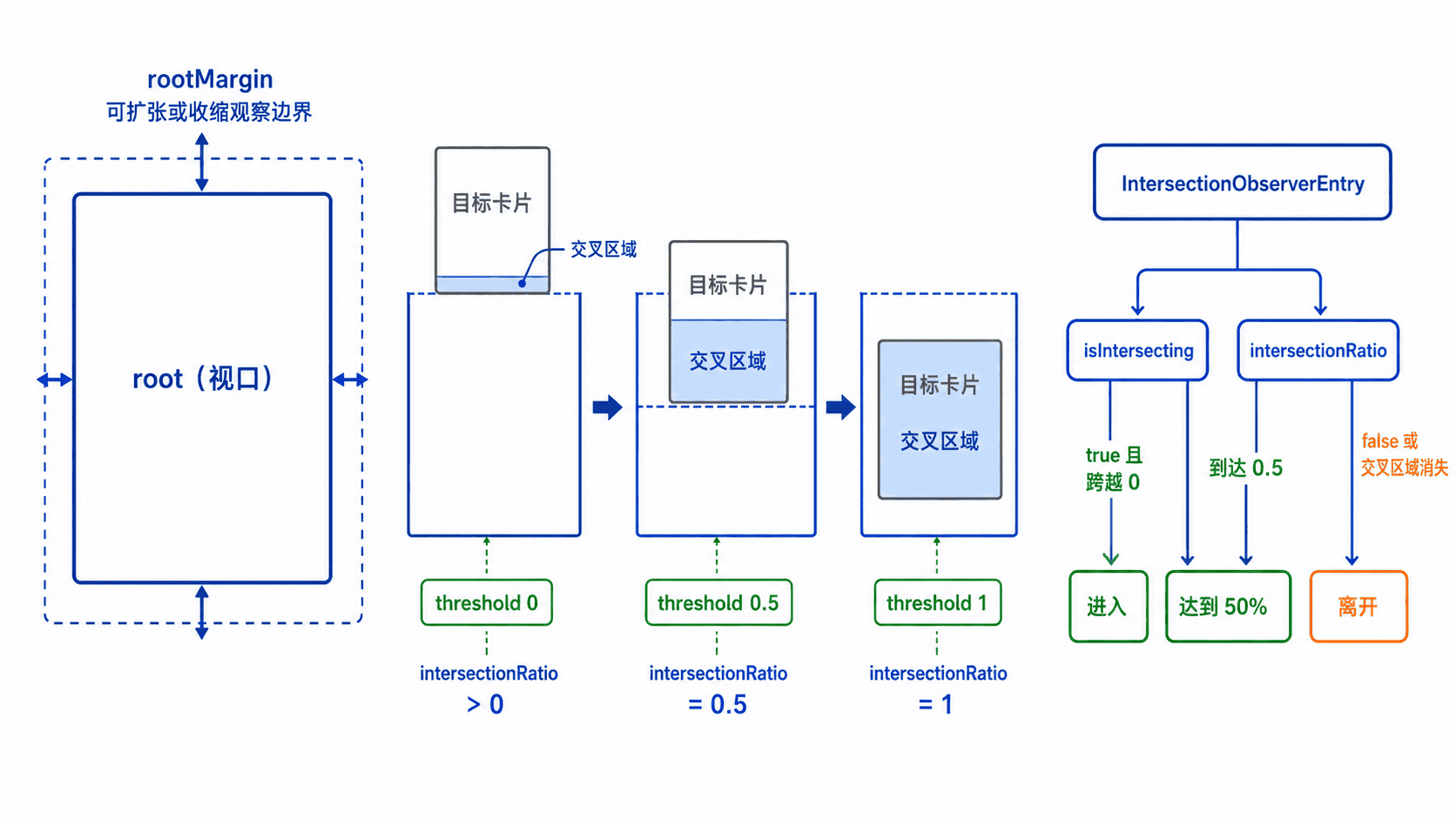
intersectionRatio 表示交叉面积占目标元素面积的比例,取值通常在 0 到 1 之间;isIntersecting 表示两者是否发生交叉。业务上经常同时判断两者,例如“发生交叉且至少可见 50%”。
配置观察根与阈值
root 为 null 时使用浏览器视口;传入元素时,该元素必须是目标的祖先滚动容器。rootMargin 使用类似 CSS 外边距的写法提前或延后触发区域,例如 "200px 0px" 可在目标距离视口还有 200 像素时开始相交。
threshold 不是“最低可见比例过滤器”,而是一组触发边界。[0, 0.5, 1] 表示交叉比例跨越 0%、50% 或 100% 时产生记录;如果只配置 0.5,元素完全离开时不一定再次跨越该阈值。
完整示例:观察卡片进入视口
将以下内容保存为 index.html 后直接在浏览器打开。页面上下各有一段空白区域,滚动卡片时可以观察不同阈值产生的状态变化。
<!doctype html>
<html lang="zh-CN">
<head>
  <meta charset="utf-8">
  <meta name="viewport" content="width=device-width, initial-scale=1">
  <title>IntersectionObserver 示例</title>
  <style>
    body {
      margin: 0;
      font-family: sans-serif;
      background: #f5f7fa;
    }

    .spacer {
      height: 110vh;
      display: grid;
      place-items: center;
    }

    #target {
      width: min(520px, 80vw);
      min-height: 220px;
      margin: 0 auto;
      padding: 24px;
      border: 3px solid #64748b;
      border-radius: 16px;
      background: white;
      box-sizing: border-box;
      transition: border-color 160ms, transform 160ms;
    }

    #target.visible {
      border-color: #15803d;
      transform: scale(1.02);
    }

    #log {
      margin: 16px 0 0;
      white-space: pre-wrap;
    }
  </style>
</head>
<body>
  <div class="spacer">向下滚动</div>

  <article id="target">
    <h1>未达到 50% 可见</h1>
    <pre id="log">等待首次通知</pre>
  </article>

  <div class="spacer">继续滚动可观察离开状态</div>

  <script>
    const target = document.querySelector("#target");
    const title = target.querySelector("h1");
    const log = document.querySelector("#log");

    const observer = new IntersectionObserver((entries) => {
      const entry = entries[0];
      const visible = entry.isIntersecting &&
        entry.intersectionRatio >= 0.5;

      target.classList.toggle("visible", visible);
      title.textContent = visible
        ? "已达到 50% 可见"
        : "未达到 50% 可见";

      log.textContent =
        `isIntersecting: ${entry.isIntersecting}\n` +
        `intersectionRatio: ${entry.intersectionRatio.toFixed(2)}`;
    }, {
      root: null,
      rootMargin: "0px",
      threshold: [0, 0.5, 1]
    });

    observer.observe(target);

    window.addEventListener("pagehide", () => {
      observer.disconnect();
    }, { once: true });
  </script>
</body>
</html>
预期结果
页面加载后会先显示一次目标当前状态。滚动使卡片达到至少 50% 可见时,边框变绿并显示以下信息;实际比例由视口大小和滚动位置决定。
isIntersecting: true
intersectionRatio: <RATIO>
卡片标题:已达到 50% 可见
关键边界与清理
调用 observe() 后会产生目标的初始记录,因此回调不只在用户滚动后执行。多个目标可能在同一批回调中出现,实际代码应遍历全部 entries,不要默认永远只有第一项。
停止单个目标使用 observer.unobserve(target);页面或组件销毁时使用 observer.disconnect()。观察器回调中应避免大量同步计算,可把网络请求、图片解码或复杂渲染交给后续任务处理。
适用场景与易混淆点
IntersectionObserver 适合判断元素与视口或滚动容器的交叉关系,但不负责监听元素自身尺寸,也不保证逐像素、逐帧通知。需要精确拖拽坐标时应使用指针事件,需要监听盒子尺寸变化时应使用 ResizeObserver。