
Web 图形与 3D / 系统课时
动画片段切换如何平滑过渡
动画片段切换如何平滑过渡
直接停止旧动画再播放新动画,产品零件往往会从当前姿态跳到新片段的首帧。本课用 Three.js 的 AnimationMixer 与 AnimationAction,让两个动作在 0.6 秒内交叉混合,并处理目标动作重置、重复点击与过渡结束后的清理。
学习目标
- 理解
crossFadeTo()如何让两个动作的播放权重交替变化。 - 在可运行的 Three.js 场景中实现两个片段的平滑切换。
- 正确使用
reset()、play()、fadeIn()和fadeOut(),排查姿态跳变。
权重如何消除姿态跳变
AnimationClip 保存关键帧,AnimationMixer 负责推进时间,AnimationAction 决定片段是否播放以及它对最终姿态的影响程度。直接 stop() 旧动作会立即撤销旧姿态;若新片段第一帧的零件位置不同,就可能出现跳变。
交叉淡化时,旧动作权重在 0.6 秒内由 1 降到 0,新动作则由 0 升到 1。假设旧动画此刻给出 position.y = 0.1,新动画给出 0.9,在两者权重各为 0.5 时,混合位置为 0.5。这要求两个片段确实驱动同一对象的对应属性。
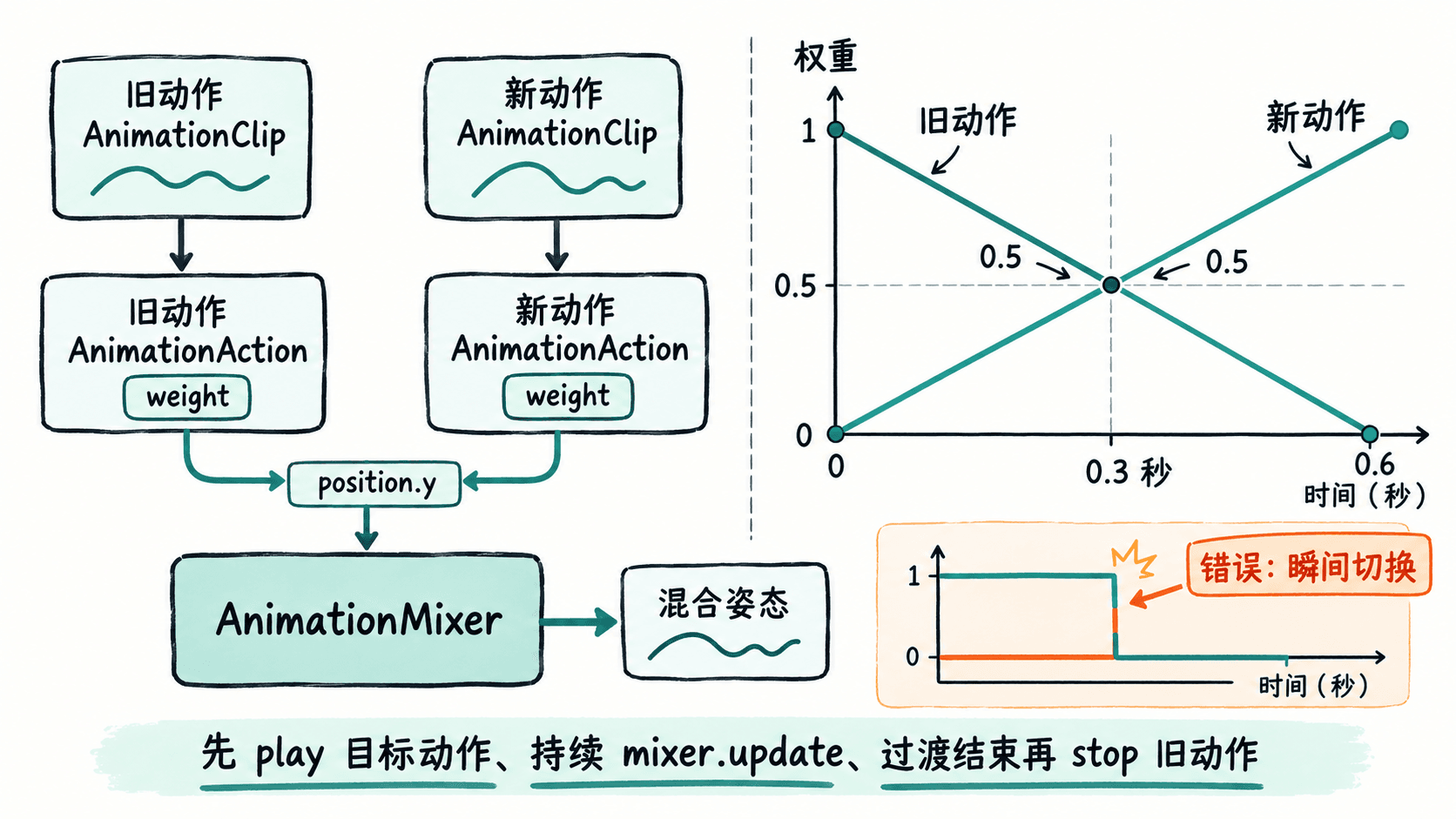
from.crossFadeTo(to, 0.6, false) 同时安排旧动作淡出与目标动作淡入;第三个参数 false 表示不做播放速度扭曲。它不会替你重置目标片段,也不能代替目标动作的 play()。
可运行的双动作切换
使用已安装 Node.js 的终端创建 Vite 原生 JavaScript 工程,再安装 three:
npm create vite@latest animation-crossfade -- --template vanilla
cd animation-crossfade
npm install
npm install three
预期结果:工程安装成功,项目依赖中包含 three。将 src/main.js 替换为下面的完整代码;示例不依赖外部模型,立方体的竖直位置由两个 1 秒循环片段控制。
import * as THREE from 'three';

document.body.style.margin = '0';
const scene = new THREE.Scene();
scene.background = new THREE.Color(0xf5f8fb);
const camera = new THREE.PerspectiveCamera(45, innerWidth / innerHeight, 0.1, 100);
camera.position.set(3, 2, 5);
camera.lookAt(0, 0.4, 0);

const renderer = new THREE.WebGLRenderer({ antialias: true });
renderer.setSize(innerWidth, innerHeight);
document.body.appendChild(renderer.domElement);

const product = new THREE.Mesh(
  new THREE.BoxGeometry(1.2, 1.2, 1.2),
  new THREE.MeshNormalMaterial()
);
scene.add(product);
const grid = new THREE.GridHelper(6, 6);
grid.position.y = -0.8;
scene.add(grid);

const mixer = new THREE.AnimationMixer(product);
function makeAction(name, values) {
  // 两条轨道绑定同一属性,使位移能够按权重混合
  const track = new THREE.NumberKeyframeTrack('.position[y]', [0, 0.5, 1], values);
  return mixer.clipAction(new THREE.AnimationClip(name, 1, [track]));
}
const idle = makeAction('待机', [0, 0.12, 0]);
const lift = makeAction('升起', [0.8, 1, 0.8]);

let current = idle;
let outgoing = null;
let remaining = 0;
current.play();

function switchTo(next) {
  if (next === current || remaining > 0) return; // 过渡中忽略连点,避免权重重叠调度
  next.reset().setEffectiveTimeScale(1).setEffectiveWeight(1).play();
  outgoing = current;
  outgoing.crossFadeTo(next, 0.6, false);
  current = next;
  remaining = 0.6;
}

const bar = document.createElement('div');
bar.style.cssText = 'position:fixed;top:16px;left:16px;display:flex;gap:8px';
for (const [label, action] of [['待机', idle], ['升起', lift]]) {
  const button = document.createElement('button');
  button.textContent = label;
  button.onclick = () => switchTo(action);
  bar.appendChild(button);
}
document.body.appendChild(bar);

const clock = new THREE.Clock();
function animate() {
  requestAnimationFrame(animate);
  const delta = Math.min(clock.getDelta(), 0.05);
  mixer.update(delta); // 同时推进关键帧时间和淡入淡出的权重
  if (remaining > 0) {
    remaining = Math.max(0, remaining - delta);
    if (remaining === 0) {
      outgoing.stop(); // 混合结束后才停用旧动作
      outgoing = null;
    }
  }
  renderer.render(scene, camera);
}
animate();

addEventListener('resize', () => {
  camera.aspect = innerWidth / innerHeight;
  camera.updateProjectionMatrix();
  renderer.setSize(innerWidth, innerHeight);
});
预期结果:执行 npm run dev 并打开终端给出的本地地址,页面出现一个立方体和“待机”“升起”按钮;点击“升起”后,立方体在约 0.6 秒内平滑移向较高的位置,点击“待机”会平滑返回。动画仍持续小幅上下浮动。
淡入淡出与时间重置
crossFadeTo() 适合两个动作直接交接;想分别控制时,可在目标动作已 reset().play() 且权重恢复为 1 后,调用 from.fadeOut(0.6) 和 to.fadeIn(0.6)。它们分别调度旧动作由 1 到 0、新动作由 0 到 1;同一次切换不要再叠加 crossFadeTo()。
reset() 把目标动作的本地播放时间归零,并清除之前的淡化或变速状态;play() 负责让动作进入播放调度。setEffectiveWeight(1) 清除残留淡化影响,确保下一次正常淡入。如果希望继续目标动作上次的时间点,就不要无条件调用 reset()。
实际项目中的 glTF 动画可通过 new THREE.AnimationMixer(gltf.scene) 建立混合器,再对 gltf.animations 中的片段逐个调用 mixer.clipAction(clip)。用于互相过渡的动作应绑定同一套目标节点和关节路径;名称相近但绑定对象不同的片段不会自动形成期望的姿态混合。
验收与典型故障
- 分别测试 0.2、0.6、1.2 秒过渡时长。0.2 秒切换更利落但跳变感可能明显,1.2 秒则可能拖慢产品交互;常规动作切换先用 0.3~0.6 秒,再按运动幅度调整。
- 如果点击后直接跳到新姿态,检查是否在
crossFadeTo()之前调用了旧动作的stop(),或直接把其enabled设为false。应等淡出结束后再移除旧动作。 - 如果没有过渡,确认目标动作先执行了
play(),并且渲染循环每帧调用mixer.update(delta);delta的单位是秒,而不是毫秒。 - 如果切回旧动作停在错误帧,检查是否遗漏
reset();如果快速连点造成混合权重混乱,可像示例一样在 0.6 秒内暂时拒绝下一次切换。
对于只需要从待机到展示动作的交互,保留一个当前动作引用、一个混合时长和过渡结束清理即可;无需在每次点击时重新创建 AnimationMixer 或 AnimationClip。