
Web 图形与 3D / 系统课时
AnimationMixer 如何播放动作
AnimationMixer 如何播放动作
导入带动画的 glTF/GLB 后,模型虽然已经出现在场景中,却不会自动播放动作。本篇用一份带有 Walking 动作的 GLB 建立完整播放链路:读取 AnimationClip,创建 AnimationMixer 与 AnimationAction,再按每帧经过的秒数更新模型。
学习目标
- 区分模型根节点、动画片段、混合器和动作实例的职责。
- 运行一个可循环播放的 glTF 预设动作,并检查播放结果。
- 设置循环次数和速度,排查加载成功却不动的问题。
动作如何绑定到模型
GLTFLoader 返回的 gltf.scene 是模型根节点,gltf.animations 是 AnimationClip 数组。片段只保存轨道、关键帧与持续时间;把它交给 mixer.clipAction(clip) 才会得到可控制的 AnimationAction。混合器必须绑定包含轨道目标的模型层级,通常直接使用 gltf.scene。
播放有两个必要动作:调用 action.play() 激活动作,并在渲染循环里持续调用 mixer.update(deltaSeconds)。后者根据时间推进关键帧,修改骨骼、位置或形态权重;随后渲染器才能显示新姿态。deltaSeconds 的单位是秒,不能直接把毫秒数传进去。
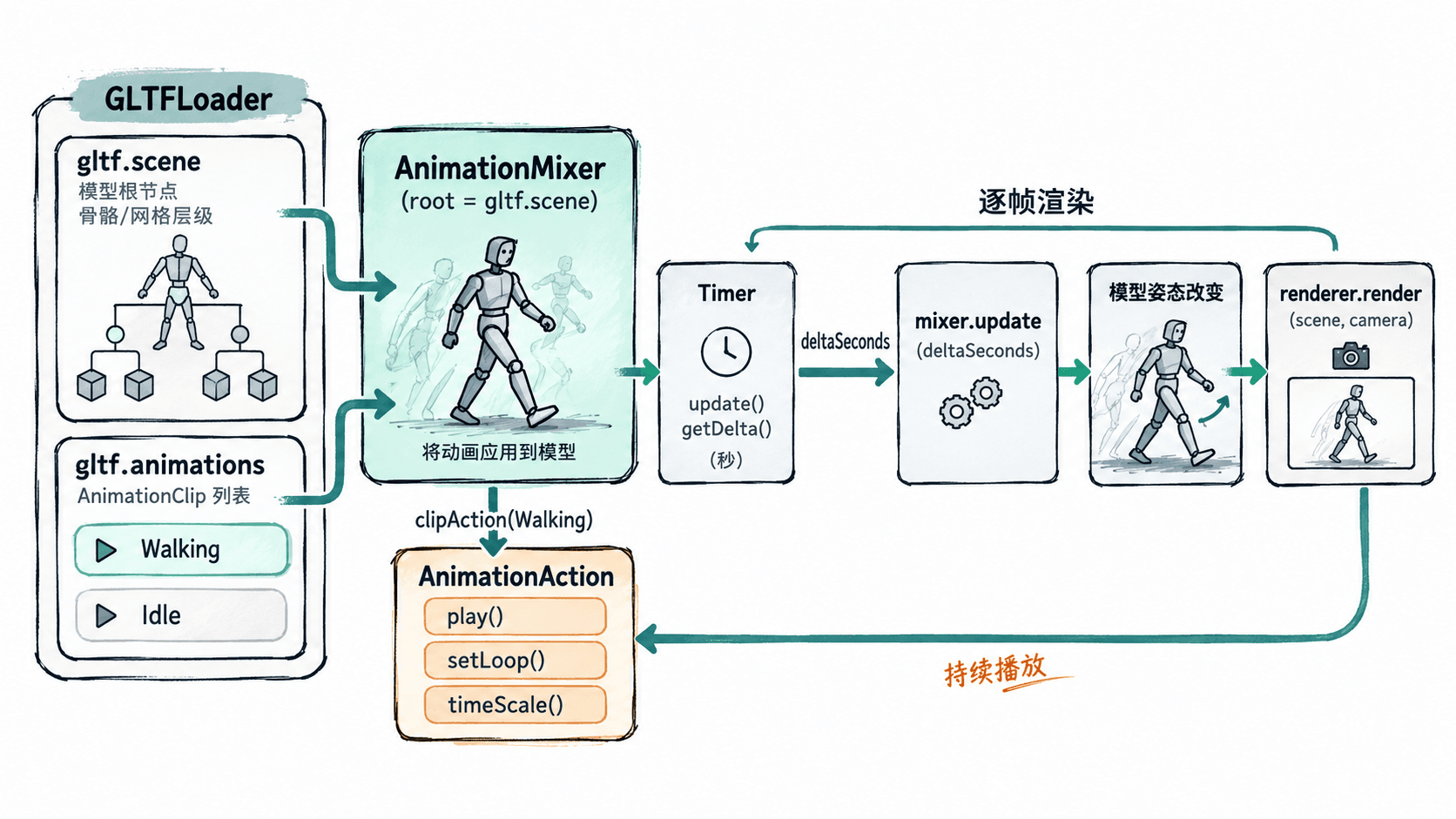
加载并播放 Walking
准备 Node.js 20.19+ 或 22.12+、npm 和现代浏览器。以下命令在 Bash 或 Git Bash 中执行,创建 Vite 原生 JavaScript 项目,并下载 Three.js 官方示例所用的 RobotExpressive.glb 到静态资源目录。
npm create vite@latest mixer-demo -- --template vanilla
cd mixer-demo
npm install
npm install three
mkdir -p public/models
curl -fsSL https://threejs.org/examples/models/gltf/RobotExpressive/RobotExpressive.glb -o public/models/RobotExpressive.glb
test -s public/models/RobotExpressive.glb && echo "GLB ready"
预期输出(最后一条检查命令):
GLB ready将 src/main.js 整体替换成下面的代码。示例使用 Three.js r183 及更新版本提供的 Timer;旧教程常见的 Clock 自 r183 起已标记弃用。
import * as THREE from 'three';
import { GLTFLoader } from 'three/addons/loaders/GLTFLoader.js';

const scene = new THREE.Scene();
scene.background = new THREE.Color(0xf3f5f7);

const camera = new THREE.PerspectiveCamera(45, innerWidth / innerHeight, 0.1, 100);
camera.position.set(3, 2, 5);
camera.lookAt(0, 1, 0);

const renderer = new THREE.WebGLRenderer({ antialias: true });
renderer.setSize(innerWidth, innerHeight);
document.body.style.margin = '0';
document.body.replaceChildren(renderer.domElement);

scene.add(new THREE.HemisphereLight(0xffffff, 0x777777, 2));

const timer = new THREE.Timer();
timer.connect(document);
let mixer = null;

try {
  const gltf = await new GLTFLoader().loadAsync('/models/RobotExpressive.glb');
  scene.add(gltf.scene);

  // 按名称取出预设动作,避免依赖动画数组的排列顺序。
  const clip = THREE.AnimationClip.findByName(gltf.animations, 'Walking');
  if (!clip) throw new Error('模型中找不到 Walking 动作');

  mixer = new THREE.AnimationMixer(gltf.scene);
  const action = mixer.clipAction(clip);
  action.setLoop(THREE.LoopRepeat, Infinity);
  action.timeScale = 1;
  action.play();
  console.log('已播放:', clip.name);
} catch (error) {
  console.error('模型或动画加载失败:', error);
}

renderer.setAnimationLoop(() => {
  // 每帧先更新时间,再应用动画,然后绘制当前姿态。
  timer.update();
  if (mixer) mixer.update(timer.getDelta());
  renderer.render(scene, camera);
});

addEventListener('resize', () => {
  camera.aspect = innerWidth / innerHeight;
  camera.updateProjectionMatrix();
  renderer.setSize(innerWidth, innerHeight);
});
预期结果:打开页面后可看到机器人连续迈步;浏览器开发者工具控制台显示:
已播放: Walking启动开发服务器:
npm run dev预期结果:终端显示本地访问地址(实际端口可能不同),用浏览器打开即可查看动画。
调整循环与播放速度
AnimationAction 负责单个片段的播放状态。上例中 LoopRepeat 搭配 Infinity 表示无限循环,timeScale = 1 表示按片段原速播放。可在 action.play() 之前修改参数,保存后刷新页面对比效果。
| 需求 | 设置方式 | 可观察的变化 |
|---|---|---|
| 半速播放 | action.timeScale = 0.5 |
一轮播放时间变为原来的 2 倍 |
| 双倍速 | action.timeScale = 2 |
一轮播放时间缩短为一半 |
| 播放一次 | action.setLoop(THREE.LoopOnce, 1) |
到达末尾后停止循环 |
| 单次播放后定格 | action.clampWhenFinished = true,并设置 LoopOnce |
保留最后一帧姿态 |
| 暂停或继续 | action.paused = true 或 false |
只暂停或恢复该动作 |
例如,原长 2 秒的动作在 timeScale = 1.5 时,每轮约需 1.33 秒。要重新播放已结束的单次动作,可调用 action.reset().play();如果要同时暂停同一混合器管理的所有动作,可使用 mixer.timeScale = 0。
动画不动时怎样排查
先在开发者工具的 Network 面板检查 RobotExpressive.glb 是否请求成功。出现 404 通常是资源没有放在 public/models,或加载路径写错;不要用 file:// 直接打开页面,应通过 Vite 开发服务器访问。
若模型显示正常却保持静止,先查看控制台是否有 已播放: Walking。若报找不到动作,可临时打印 gltf.animations.map(clip => clip.name) 确认实际名称;返回空数组说明 GLB 没有导出动画数据,需要回到建模软件检查导出设置。
若动作能启动却卡在首帧,检查渲染循环是否每帧执行 timer.update() 与 mixer.update(timer.getDelta()),并确保 action.paused 不为 true、action.timeScale 不为 0。更换模型时应创建绑定新模型根节点的混合器;移除旧模型后可先调用旧混合器的 stopAllAction(),避免无用动作继续更新。
实际项目可按照“加载片段—选择动作—配置播放—逐帧更新—检查输出”的顺序接入产品开合、角色行走或展厅机械结构动画,不必手动重写 glTF 已有的关键帧轨道。