
游戏引擎 / 系统课时
分离输入层与角色逻辑
分离输入层与角色逻辑
同一角色既要接收键盘操作,也要响应手机上的方向按钮。若在按键回调里直接修改角色坐标,暂停、重绑定和触控适配都会牵动玩法代码。本课把设备输入统一为移动与交互意图,再由角色控制器在玩法允许时执行,形成可替换的输入入口。
学习目标
- 将键盘、鼠标与触控映射到统一的玩法意图。
- 把输入采集、角色移动和玩法状态分为独立组件。
- 验证斜向速度、按键释放和暂停时的输入行为。
用统一意图隔离具体设备
输入层只回答“本帧希望向哪里移动、是否请求交互”,不负责速度、碰撞或奖励;角色层根据意图计算位移;玩法状态层判断当前是否允许操作。
本例约定 Vec2(x, y) 为平面移动意图,x 表示世界 X 方向,y 表示朝世界负 Z 方向前进。它不是角色的当前位置,也不是直接写入引擎的物理速度。
三个组件的职责如下:
MoveInput:采集 WASD、键盘 E 和触控 UI 按钮,输出统一移动方向与一次性交互请求。GameplayGate:维护当前是否允许执行玩法操作,不关心具体输入设备。PlayerMotor:读取意图和玩法状态,决定如何改变角色位置或处理交互。
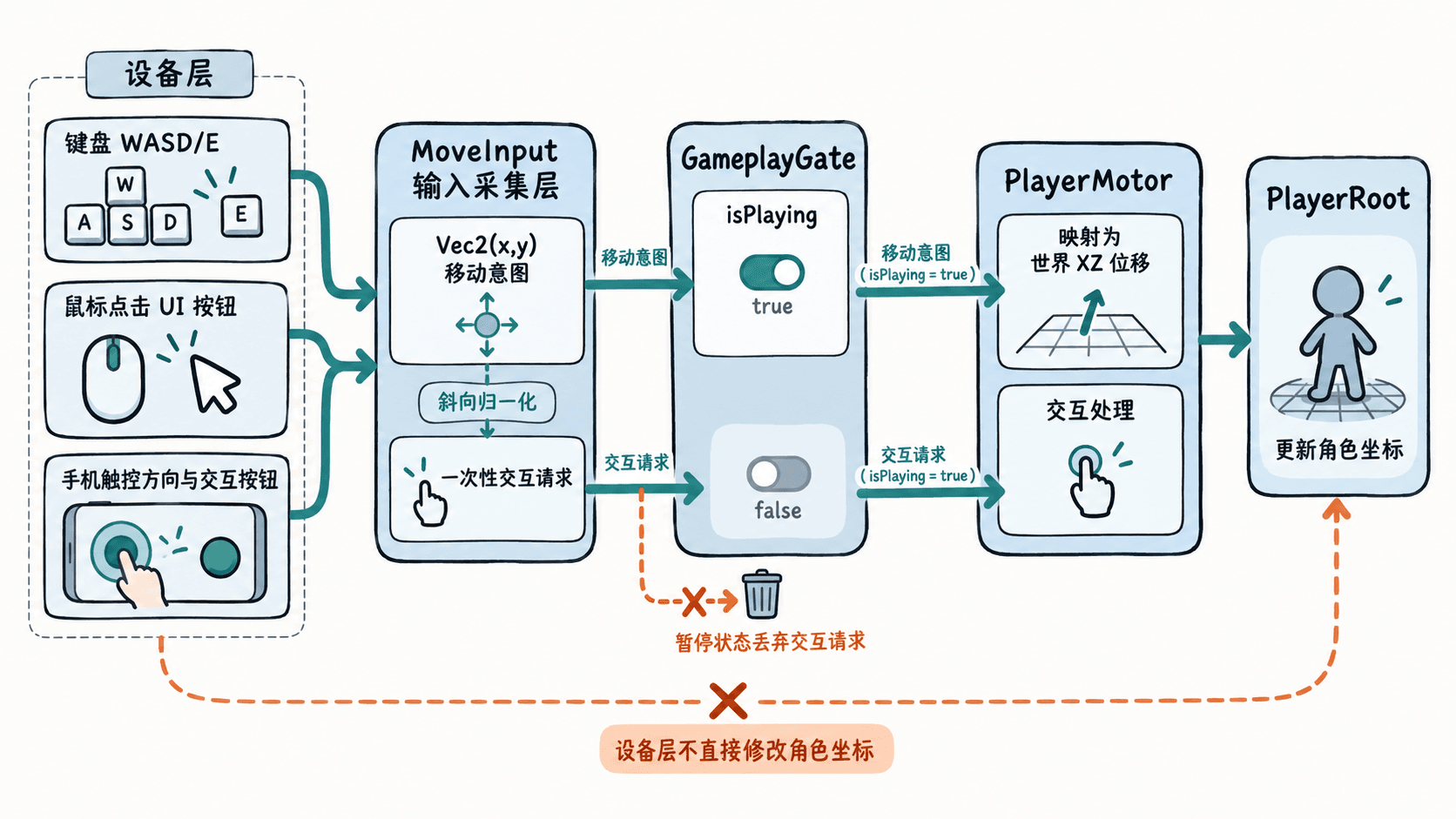
这种分层的核心收益是替换输入方式时不需要修改角色移动算法。例如,后续换成虚拟摇杆时,只要仍然输出归一化的 Vec2,角色层就不需要知道数据来自键盘还是触摸屏。
准备可复用的场景组件
在 Canvas 内放置五个具有 UITransform 的按钮节点:上、下、左、右、交互。按钮可以使用普通 UI 图形展示;其触控事件在移动端响应手指,在桌面预览中也可用鼠标操作。
创建三个 TypeScript 文件:MoveInput.ts、GameplayGate.ts 和 PlayerMotor.ts。
把 MoveInput、GameplayGate 挂到场景中的控制节点,PlayerMotor 挂到 PlayerRoot。在检查器中给输入组件绑定五个 UI 按钮,再把输入组件和玩法状态组件引用拖给 PlayerMotor。
本例前进方向固定为世界负 Z,暂不进行相机相对方向转换。角色节点建议使用没有动态刚体驱动的简单测试角色,以便先验证输入架构。
采集输入但不移动角色
MoveInput 合并 WASD 和触控方向;键盘 E 或点击交互按钮都会生成一次性请求。连续移动使用按下与松开状态计算,离散交互则使用“取出后清除”的方式处理。
import {
    _decorator, Component, Node, input, Input,
    EventKeyboard, KeyCode, Vec2,
} from 'cc';

const { ccclass, property } = _decorator;
type Direction = 'up' | 'down' | 'left' | 'right';

@ccclass('MoveInput')
export class MoveInput extends Component {
    @property({ type: Node }) up: Node | null = null;
    @property({ type: Node }) down: Node | null = null;
    @property({ type: Node }) left: Node | null = null;
    @property({ type: Node }) right: Node | null = null;
    @property({ type: Node }) interact: Node | null = null;

    private keys = new Set<KeyCode>();
    private touches = new Set<Direction>();
    private disposers: Array<() => void> = [];
    private interactPending = false;

    protected onEnable(): void {
        input.on(Input.EventType.KEY_DOWN, this.keyDown, this);
        input.on(Input.EventType.KEY_UP, this.keyUp, this);
        this.bindHold(this.up, 'up');
        this.bindHold(this.down, 'down');
        this.bindHold(this.left, 'left');
        this.bindHold(this.right, 'right');
        this.interact?.on(Node.EventType.TOUCH_START, this.touchInteract, this);
    }

    protected onDisable(): void {
        input.off(Input.EventType.KEY_DOWN, this.keyDown, this);
        input.off(Input.EventType.KEY_UP, this.keyUp, this);
        this.interact?.off(Node.EventType.TOUCH_START, this.touchInteract, this);
        this.disposers.forEach(dispose => dispose());
        this.disposers.length = 0;
        this.keys.clear();
        this.touches.clear();
        this.interactPending = false;
    }

    private keyDown(event: EventKeyboard): void {
        // 连续按住 E 只产生一次交互请求。
        if (event.keyCode === KeyCode.KEY_E &&
            !this.keys.has(KeyCode.KEY_E)) this.interactPending = true;
        this.keys.add(event.keyCode);
    }

    private keyUp(event: EventKeyboard): void {
        this.keys.delete(event.keyCode);
    }

    private touchInteract(): void {
        this.interactPending = true;
    }

    private bindHold(node: Node | null, direction: Direction): void {
        if (!node) return;
        const press = () => { this.touches.add(direction); };
        const release = () => { this.touches.delete(direction); };
        node.on(Node.EventType.TOUCH_START, press, this);
        node.on(Node.EventType.TOUCH_END, release, this);
        node.on(Node.EventType.TOUCH_CANCEL, release, this);
        // 取消触摸也必须松开,停用组件时移除全部监听。
        this.disposers.push(() => {
            node.off(Node.EventType.TOUCH_START, press, this);
            node.off(Node.EventType.TOUCH_END, release, this);
            node.off(Node.EventType.TOUCH_CANCEL, release, this);
        });
    }

    public readMove(): Vec2 {
        const held = (code: KeyCode, dir: Direction) =>
            this.keys.has(code) || this.touches.has(dir);
        const x = Number(held(KeyCode.KEY_D, 'right')) -
            Number(held(KeyCode.KEY_A, 'left'));
        const y = Number(held(KeyCode.KEY_W, 'up')) -
            Number(held(KeyCode.KEY_S, 'down'));
        const length = Math.hypot(x, y);
        // 避免同时按两个方向时对角线移动更快。
        return length > 1 ? new Vec2(x / length, y / length) : new Vec2(x, y);
    }

    public takeInteract(): boolean {
        const result = this.interactPending;
        this.interactPending = false;
        return result;
    }
}
这里没有在 keyDown 或触控回调里调用 setPosition()。所有输入事件只修改暂存状态,真正的角色更新统一放在 update() 中执行。
Math.hypot(x, y) 用来计算输入长度。当玩家同时按下 W 和 D 时,原始输入为 (1,1),长度大于 1。归一化后得到两个约为 0.707 的分量,确保对角线移动不会比直线更快。
由玩法状态决定是否执行
GameplayGate 不读取任何设备事件。打开对话或暂停时,其他玩法脚本只需将 isPlaying 设为 false;角色层负责拒绝移动,同时清除未消费的交互请求,避免恢复时突然执行旧指令。
GameplayGate.ts:
import { _decorator, Component } from 'cc';

const { ccclass, property } = _decorator;

@ccclass('GameplayGate')
export class GameplayGate extends Component {
    // 由暂停或对话系统维护,不交给输入组件决定。
    @property
    isPlaying = true;
}
这个组件只有一个状态字段,是为了明确区分“输入发生了”和“玩法允许执行”。如果项目已经有成熟的游戏状态管理器,应由现有状态管理器提供这个判断,不必重复创建一套状态系统。
PlayerMotor.ts:
import { _decorator, Component, Vec3 } from 'cc';
import { MoveInput } from './MoveInput';
import { GameplayGate } from './GameplayGate';

const { ccclass, property } = _decorator;

@ccclass('PlayerMotor')
export class PlayerMotor extends Component {
    @property({ type: MoveInput }) inputSource: MoveInput | null = null;
    @property({ type: GameplayGate }) gate: GameplayGate | null = null;
    @property speed = 4;

    private position = new Vec3();

    protected update(dt: number): void {
        if (!this.inputSource || !this.gate) return;
        const interact = this.inputSource.takeInteract();
        if (!this.gate.isPlaying) return; // 暂停时丢弃旧交互。

        if (interact) console.log('交互请求已消费');
        const axis = this.inputSource.readMove();
        if (axis.x === 0 && axis.y === 0) return;

        // 这里只展示输入分层;真实物理角色应由运动组件处理碰撞。
        this.node.getWorldPosition(this.position);
        this.node.setWorldPosition(
            this.position.x + axis.x * this.speed * dt,
            this.position.y,
            this.position.z - axis.y * this.speed * dt,
        );
    }
}
预期输出:运行包含这三个脚本的场景,按一次 E 或点击交互按钮,控制台新增一行;长按 E 不会连续刷出消息。
交互请求已消费预期结果:按 W 或按住触控“上”都会使角色向世界负 Z 方向移动;同时按 W+D 时仍保持相同的总速度。将 GameplayGate.isPlaying 设为 false 后重新预览,移动和交互均不生效。
代码中的 dt 为当前帧耗时,乘以 speed 后可让角色位移不直接依赖渲染帧率。takeInteract() 每帧最多向角色层提供一次待处理请求,避免持续按键造成多次执行。
验证输入切换与实际项目边界
先在桌面预览中使用 WASD 移动,然后用鼠标按住 Canvas 中的方向按钮,比较两种方式的移动方向是否一致。再使用移动端触控预览,确认方向按钮按下后立即移动、松开后停止。
还需要检查以下边界:
- 同时按下相反方向时,例如 W 和 S,移动意图应相互抵消。
- 手指滑出方向按钮并取消触控后,角色应停止该方向移动。
- 组件停用再启用后,不应保留之前的键盘和触控状态,也不应出现重复监听。
- 暂停时按下交互,恢复后不应突然执行暂停期间积累的旧请求。
示例使用 setWorldPosition() 是为了看清输入到位移的数据流,它不会替角色解决墙体阻挡、台阶、接地或物理推挤。接入正式 3D 角色时,应保留 readMove() 意图接口,将执行部分交给角色控制器或合适的物理运动组件,避免直接修改动态刚体的位置。
对于场景鼠标点选,也不应该把任意全局左键点击直接解释为交互。应先考虑 UI 输入优先级,再根据需要进行空间命中检测。这样无论输入来自键盘、鼠标、触控还是后续加入的手柄,角色和玩法系统都只需处理统一的动作意图,而不必了解具体设备细节。