
游戏引擎 / 系统课时
用触控摇杆控制 3D 角色
用触控摇杆控制 3D 角色
本课实现一个能在手机预览中操作的虚拟摇杆:手指在 UI 圆盘内拖动,摇杆头受半径约束,二维输入再按摄像机方向映射到 3D 地面的 XZ 位移。松手后角色立即停止,摄像机俯视角度也不会让角色沿 Y 轴移动。
学习目标
- 接收摇杆的开始、移动、结束和取消触控事件。
- 将触点坐标转换为以圆盘中心为原点的二维输入。
- 按摄像机朝向计算地面移动方向,并验证松手归零。
搭建触控层与摇杆节点
在 Cocos Creator 3.8 场景中保留 3D Player 与负责显示它的 Main Camera。另建 Canvas,在其左下方放置带 UITransform 与 Sprite 的 JoystickBase(例如 160×160 UI 单位);其下创建 48×48 的子节点 Handle,作为可以移动的摇杆头。将两个节点锚点设在中心,Handle 初始位置设为 (0, 0, 0)。
脚本挂到 JoystickBase,把 Handle、Player、Main Camera 拖到对应属性。底盘的可触摸区域应覆盖整个操作圆盘;本例使用固定中心摇杆,将手柄中心的移动半径设为 55,使直径 48 的摇杆头仍能完整留在 160×160 的底盘内。若 Handle 也接收触控,事件可向父节点冒泡。
从 UI 平面映射到 XZ 地面
触摸事件的 getUILocation() 返回 UI 坐标;必须先用底盘节点的 UITransform.convertToNodeSpaceAR() 转成局部坐标,再以最大半径裁剪摇杆头位移。把局部 X、Y 除以半径,即得到通常介于 -1 到 1 之间的输入轴;偏离中心越远,移动强度越大。
世界方向不能直接写成 (axis.x, 0, axis.y),否则摄像机旋转后,“向上推”未必等于画面前进。正确做法是提取摄像机世界朝向对应的右方向和前方向,去掉二者的 Y 分量并各自归一化,然后按摇杆横纵轴加权组合。最后根据 deltaTime 更新玩家的世界位置。
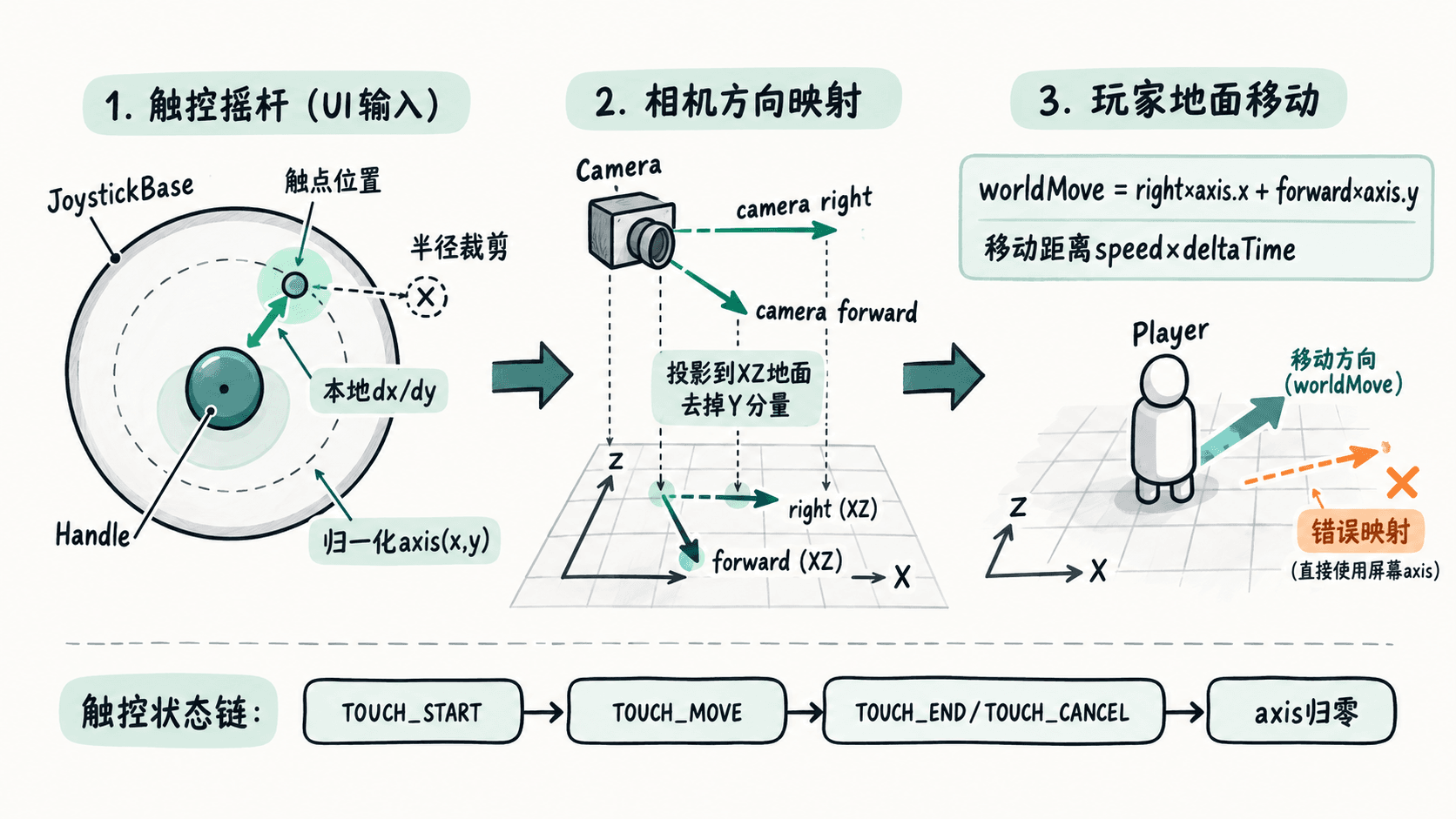
编写可运行的摇杆组件
创建 GroundJoystick.ts 并挂到 JoystickBase。脚本只允许一个触点控制摇杆,移动时复用临时向量,停用组件时也会清空输入。摄像机应为常见的无滚转第三人称视角,不能正好垂直俯视,否则投影后的前方向会接近零。
import {
  _decorator, Component, EventTouch, Node,
  Quat, UITransform, Vec2, Vec3,
} from 'cc';
const { ccclass, property } = _decorator;

@ccclass('GroundJoystick')
export class GroundJoystick extends Component {
  @property(Node) handle: Node | null = null;
  @property(Node) player: Node | null = null;
  @property(Node) cameraNode: Node | null = null;
  @property radius = 55;
  @property speed = 4; // 世界单位/秒

  private activeTouch = false;
  private touchId: number | null = null;
  private readonly axis = new Vec2();
  private readonly point = new Vec3();
  private readonly localPoint = new Vec3();
  private readonly rotation = new Quat();
  private readonly right = new Vec3();
  private readonly forward = new Vec3();
  private readonly move = new Vec3();
  private readonly pos = new Vec3();

  onEnable(): void {
    this.node.on(Node.EventType.TOUCH_START, this.onStart, this);
    this.node.on(Node.EventType.TOUCH_MOVE, this.onMove, this);
    this.node.on(Node.EventType.TOUCH_END, this.onEnd, this);
    this.node.on(Node.EventType.TOUCH_CANCEL, this.onEnd, this);
  }

  onDisable(): void {
    this.node.off(Node.EventType.TOUCH_START, this.onStart, this);
    this.node.off(Node.EventType.TOUCH_MOVE, this.onMove, this);
    this.node.off(Node.EventType.TOUCH_END, this.onEnd, this);
    this.node.off(Node.EventType.TOUCH_CANCEL, this.onEnd, this);
    this.resetStick();
  }

  private resetStick(): void {
    this.activeTouch = false;
    this.touchId = null;
    this.axis.set(0, 0);
    this.handle?.setPosition(0, 0, 0);
  }

  private onStart(e: EventTouch): void {
    if (this.activeTouch) return;
    this.activeTouch = true;
    this.touchId = e.getID();
    this.readTouch(e);
  }

  private onMove(e: EventTouch): void {
    if (this.activeTouch && e.getID() === this.touchId) {
      this.readTouch(e);
    }
  }

  private onEnd(e: EventTouch): void {
    if (!this.activeTouch || e.getID() !== this.touchId) return;
    this.resetStick(); // 松手或取消时立即归零
  }

  private readTouch(e: EventTouch): void {
    const ui = this.getComponent(UITransform);
    if (!ui || !this.handle) return;
    const p = e.getUILocation();
    this.point.set(p.x, p.y, 0);
    ui.convertToNodeSpaceAR(this.point, this.localPoint);

    const r = Math.max(1, this.radius);
    const len = Math.hypot(this.localPoint.x, this.localPoint.y);
    const k = len > r ? r / len : 1; // 手柄限制在圆形区域内
    const x = this.localPoint.x * k;
    const y = this.localPoint.y * k;
    this.handle.setPosition(x, y, 0);
    this.axis.set(x / r, y / r);
  }

  update(dt: number): void {
    if (!this.player || !this.cameraNode || this.axis.lengthSqr() < 0.01) return;
    this.cameraNode.getWorldRotation(this.rotation);
    Vec3.transformQuat(this.right, Vec3.RIGHT, this.rotation);
    Vec3.transformQuat(this.forward, Vec3.FORWARD, this.rotation);
    this.right.y = 0;
    this.forward.y = 0;

    const rLen = Math.hypot(this.right.x, this.right.z);
    const fLen = Math.hypot(this.forward.x, this.forward.z);
    if (rLen < 0.001 || fLen < 0.001) return;
    this.right.multiplyScalar(1 / rLen);
    this.forward.multiplyScalar(1 / fLen);

    this.move.set(
      this.right.x * this.axis.x + this.forward.x * this.axis.y,
      0,
      this.right.z * this.axis.x + this.forward.z * this.axis.y,
    );
    const length = Math.hypot(this.move.x, this.move.z);
    if (length > 1) this.move.multiplyScalar(1 / length);

    this.player.getWorldPosition(this.pos);
    this.pos.x += this.move.x * this.speed * dt;
    this.pos.z += this.move.z * this.speed * dt;
    this.player.setWorldPosition(this.pos);
  }
}
预期结果:预览时向上推摇杆,角色沿摄像机在地面上的前方移动;向右推则向画面右侧移动;斜推不会超出设定最大速度。角色 Y 坐标保持不变,松手或触摸取消后,摇杆头回到中心且角色停止。浏览器可用鼠标模拟触摸,但应在手机上再验证一次多点操作。
验收与常见失效原因
- 先在底盘内单指拖动,检查摇杆头是否被限制在圆内;再松手,确认位置与输入都归零。
- 旋转
Main Camera的偏航角后再次向上推,确认移动跟着镜头方向改变,而不是始终沿世界 -Z。 - 再按住摇杆,用另一根手指操作画面,确认第二触点不会抢走摇杆控制权。
如果底盘没有触摸响应,先确认它具有 UITransform、处于启用状态、可被 UI 命中且没有上层节点阻挡。若角色不动,核对 player 和 cameraNode 引用,并确认摄像机不是严格垂直向下;若角色向地下钻,通常是没有把摄像机方向投影回 XZ 平面。