
游戏引擎 / 系统课时
拆分控制器输入与运动逻辑
拆分控制器输入与运动逻辑
当角色脚本同时读取键盘、计算位移和旋转模型时,接入 AI、回放或网络指令就容易反复修改同一个 Update。本课把输入意图、运动计算和视觉表现分开,最终得到一套可在 Unity 场景中直接验证的 CharacterController 移动管线。
学习目标
- 使用不依赖键位的
MoveIntent表达二维移动方向。 - 将速度计算与
CharacterController.Move的碰撞执行区分开。 - 让视觉朝向依赖运动结果,而不是直接读取输入设备。
为什么要把意图放在中间
输入层不应该决定角色每秒走多快,更不应该直接操作 Transform。它只负责把 WASD 或方向键变成范围受限的二维意图;运动层再结合速度、接地状态与重力算出期望速度;执行层调用 CharacterController.Move;表现层使用水平速度调整模型朝向。
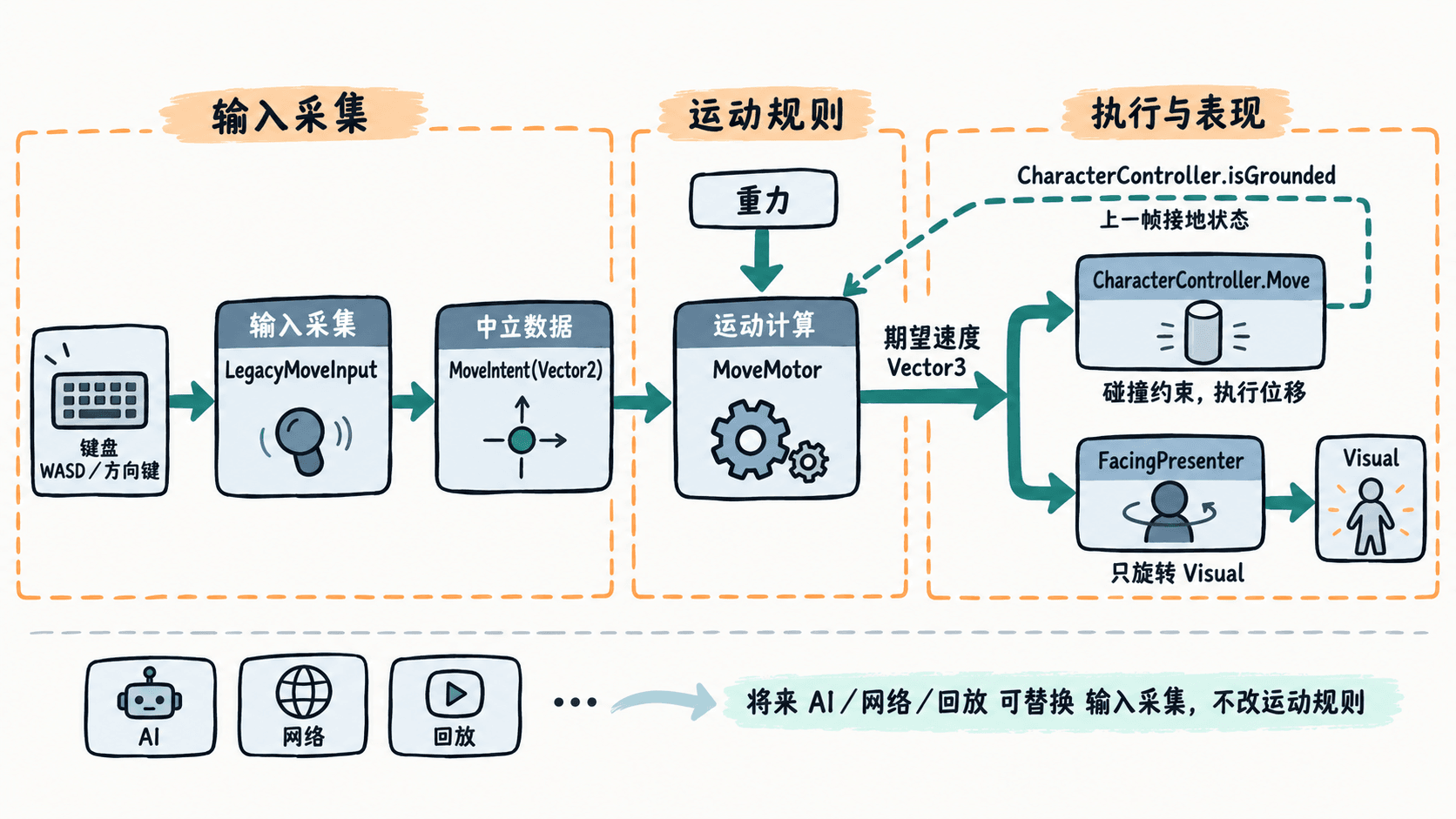
关键是区分意图、期望速度与真实位移:MoveMotor 只提出移动量,墙体等碰撞由 CharacterController 约束。表现层在本例按期望水平速度转向,因此角色顶住墙时仍可能面向墙,这是刻意保留的控制选择,而非碰撞计算错误。
准备角色与输入环境
在 3D 场景中放一个带碰撞体的 Plane 作为地面。建立空物体 Player,位置设为 (0, 1, 0),添加 CharacterController,默认高度 2、中心 (0, 0, 0) 即可。再建立子物体 Visual,放一个长方体模型作为可见身体,并把该子物体指定给脚本的 Visual Root,方便观察转向。
本例为了不依赖额外包,使用旧版 Input Manager 的 Horizontal、Vertical 轴。确认 Edit > Project Settings > Player > Other Settings > Active Input Handling 允许 Input Manager (Old) 或 Both,并在 Edit > Project Settings > Input Manager 保留对应轴。新项目正式开发可使用新版 Input System,届时只需替换采集适配器。
实现一条完整的移动管线
创建 SplitPlayerController.cs,放入下面的完整代码并挂到 Player。一个文件中只有入口类是 MonoBehaviour,其他类型是普通 C# 数据与计算类,不需要分别挂载。Move 接收的是每帧位移而不是速度,也不会自动施加重力,因此代码自行积分竖直速度,并在调用时乘上 Time.deltaTime(Unity API 文档)。
using UnityEngine;

[RequireComponent(typeof(CharacterController))]
public sealed class SplitPlayerController : MonoBehaviour
{
    [SerializeField] private Transform visualRoot;
    [SerializeField, Min(0f)] private float moveSpeed = 5f;
    [SerializeField, Min(0f)] private float turnSpeed = 540f;

    private CharacterController controller;
    private LegacyMoveInput input;
    private MoveMotor motor;
    private FacingPresenter presenter;

    private void Awake()
    {
        controller = GetComponent<CharacterController>();
        input = new LegacyMoveInput();
        motor = new MoveMotor(moveSpeed);
        presenter = new FacingPresenter(turnSpeed);
    }

    private void Update()
    {
        MoveIntent intent = input.Read();
        Vector3 velocity = motor.Calculate(
            intent, controller.isGrounded, Time.deltaTime);

        controller.Move(velocity * Time.deltaTime);
        Transform view = visualRoot != null ? visualRoot : transform;
        presenter.Rotate(view, velocity, Time.deltaTime);
    }
}

internal readonly struct MoveIntent
{
    public readonly Vector2 Direction;

    public MoveIntent(Vector2 direction)
    {
        // 归一化对角输入,防止两个方向叠加后超速。
        Direction = Vector2.ClampMagnitude(direction, 1f);
    }
}

internal sealed class LegacyMoveInput
{
    public MoveIntent Read()
    {
        // 只采样设备,不在这里决定移动速度。
        return new MoveIntent(new Vector2(
            Input.GetAxisRaw("Horizontal"),
            Input.GetAxisRaw("Vertical")));
    }
}

internal sealed class MoveMotor
{
    private readonly float horizontalSpeed;
    private float verticalSpeed;

    public MoveMotor(float horizontalSpeed)
    {
        this.horizontalSpeed = horizontalSpeed;
    }

    public Vector3 Calculate(MoveIntent intent, bool grounded, float dt)
    {
        // 接地时保留轻微向下速度,避免贴地状态不稳。
        if (grounded && verticalSpeed < 0f) verticalSpeed = -2f;
        verticalSpeed += Physics.gravity.y * dt;

        Vector3 horizontal = new Vector3(
            intent.Direction.x, 0f, intent.Direction.y) * horizontalSpeed;
        return horizontal + Vector3.up * verticalSpeed;
    }
}

internal sealed class FacingPresenter
{
    private readonly float degreesPerSecond;

    public FacingPresenter(float degreesPerSecond)
    {
        this.degreesPerSecond = degreesPerSecond;
    }

    public void Rotate(Transform view, Vector3 velocity, float dt)
    {
        Vector3 flat = new Vector3(velocity.x, 0f, velocity.z);
        if (flat.sqrMagnitude < 0.0001f) return;

        // 仅影响可见模型,不改变运动层的速度计算。
        Quaternion desired = Quaternion.LookRotation(flat, Vector3.up);
        view.rotation = Quaternion.RotateTowards(
            view.rotation, desired, degreesPerSecond * dt);
    }
}
预期结果:进入 Play 模式后,W/S 沿世界 Z 轴、A/D 沿世界 X 轴移动;同时按 W 与 D 不会产生更高的总速度。松开按键时水平移动停止,按新方向移动时可见模型以受限角速度转向。此演示通过场景画面验收,不会主动打印控制台日志。
检查职责是否真的独立
验证时先单按 W,再同时按 W、D,比较相同时间内的移动距离;随后向带碰撞体的墙移动,观察碰撞阻挡角色,但输入意图与模型转向仍可持续更新。最后临时将 input.Read() 替换为 new MoveIntent(Vector2.right),不改 MoveMotor 或 FacingPresenter,角色仍应持续向世界右方移动;测试后恢复原调用。
当输入不再直接改位置、表现也不再读取键盘时,状态机可以决定是否接受意图,网络层可以传递意图,碰撞执行仍集中在唯一的位置更新点。