
游戏引擎 / 系统课时
配置输入与运行调试
配置输入与运行调试
本课把移动、跳跃和交互配置为 Unity Input System 动作,再用一个脚本验证键盘输入。完成后,你能在 Game 视图操控物体,借助 Console 日志确认按键,并使用运行、暂停和逐帧工具定位行为异常。
学习目标
- 创建
Gameplay动作映射,配置移动、跳跃与交互绑定。 - 通过
InputActionReference读取输入并验证对象行为。 - 使用 Play、Pause、Step、Console 和 Input Debugger 排查问题。
启用输入系统
打开 Window > Package Manager,在 Unity Registry 中安装 Input System。随后进入 Edit > Project Settings > Player,找到 Active Input Handling,选择 Input System Package (New) 或 Both;如果出现重启提示,按提示重启编辑器。
本课采用新版 Input System,不使用旧版 Input.GetAxis。新系统将物理按键与游戏语义分离:脚本关心的是 Move、Jump 等动作,而不是把每个键位写死在逻辑里。
建立动作及键位绑定
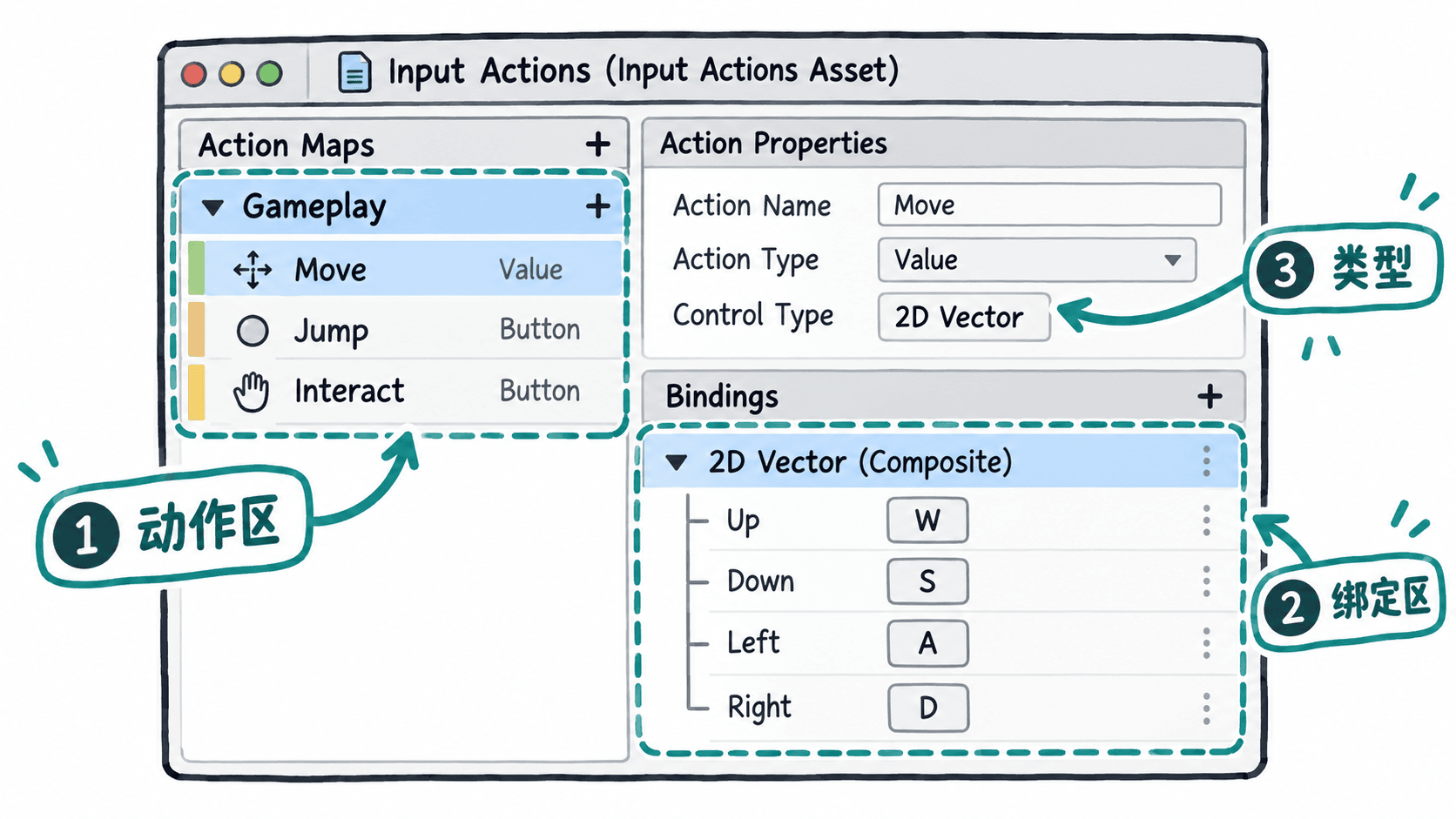
在 Project 窗口选择 Assets > Create > Input Actions,将资源命名为 GameplayControls.inputactions,双击打开并创建名为 Gameplay 的 Action Map。添加以下动作,并保存资源:
| Action | 类型与值 | 绑定 |
|---|---|---|
Move |
Value、Vector2 |
2D Vector Composite:Up=W、Down=S、Left=A、Right=D |
Jump |
Button |
<Keyboard>/space |
Interact |
Button |
<Keyboard>/e |
Move 的四个方向要作为同一个 2D Vector 复合绑定的子项,而不是四个独立的 Button 动作。这样 ReadValue<Vector2>() 才能给出平面方向;按 W 对应约 (0, 1),按 D 对应约 (1, 0)。
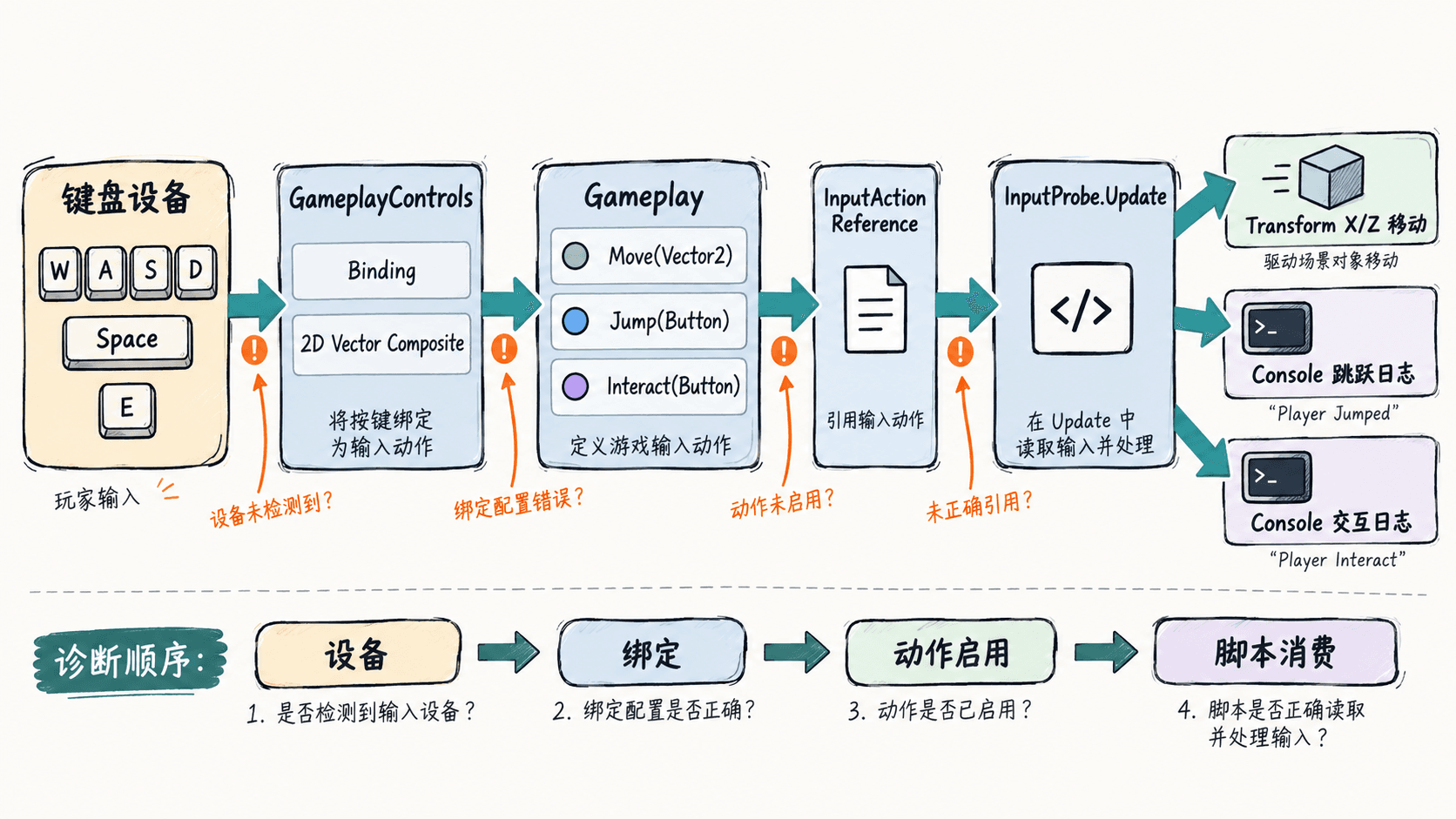
输入链路可以理解为“设备按键 → Binding → Action → 脚本读取 → 场景行为”。这也是排错顺序:先确认设备有信号,再确认动作绑定,最后检查脚本是否消费了动作。
用脚本消费输入
在场景中创建 Capsule,保持其没有 Rigidbody,新建 InputProbe.cs 并附加到 Capsule。以下示例只把移动映射到世界 X/Z 平面;跳跃与交互暂时以日志验证,不实现跳跃物理或物品交互。
using UnityEngine;
using UnityEngine.InputSystem;

public class InputProbe : MonoBehaviour
{
    [SerializeField] private InputActionReference move;
    [SerializeField] private InputActionReference jump;
    [SerializeField] private InputActionReference interact;
    [SerializeField] private float speed = 3f;
    private bool ready;

    private void OnEnable()
    {
        // 引用未绑定时直接停止读取,便于定位 Inspector 配置错误。
        ready = move != null && jump != null && interact != null
            && move.action != null && jump.action != null && interact.action != null;
        if (!ready)
        {
            Debug.LogError("Assign Move, Jump and Interact", this);
            return;
        }

        move.action.Enable();
        jump.action.Enable();
        interact.action.Enable();
    }

    private void Update()
    {
        if (!ready) return;

        // 帧率无关的 X/Z 平面移动。
        Vector2 axis = move.action.ReadValue<Vector2>();
        transform.position += new Vector3(axis.x, 0f, axis.y) * speed * Time.deltaTime;

        // 只在按下的这一帧记录一次,不会因长按而刷屏。
        if (jump.action.WasPressedThisFrame()) Debug.Log("Jump pressed");
        if (interact.action.WasPressedThisFrame()) Debug.Log("Interact pressed");
    }

    private void OnDisable()
    {
        if (!ready) return;
        move.action.Disable();
        jump.action.Disable();
        interact.action.Disable();
        ready = false;
    }
}
选中 Capsule,在 Inspector 的 Move、Jump、Interact 引用字段中分别指定 Gameplay 下的同名动作。本例直接管理动作的启用与禁用,不必再添加 PlayerInput 组件。确保 Game 视图获得键盘焦点后运行。
预期结果:按住 W,Capsule 沿世界 Z 正方向移动;分别按下 Space 和 E,Console 出现以下消息(仅显示消息正文):
Jump pressed
Interact pressed
运行、暂停与逐帧检查
点击工具栏的 Play 进入运行状态;点击 Pause 暂停,再点击 Step 只推进一帧。暂停时可查看 Inspector 中的 Transform.position,逐帧观察 Update 的执行效果;Step 不等于重新发送一次按键事件。
通过 Window > General > Console 查看日志与报错。红色错误优先处理;如果移动正常但跳跃没有日志,先检查 Jump 的 Button 类型、Space 绑定和动作引用,不要立即修改运动代码。需要确认键盘事件是否被识别时,打开 Window > Analysis > Input Debugger,检查 Devices 下的 Keyboard 控件状态。
输入没有响应时怎么查
先检查 Console 是否出现 Assign Move, Jump and Interact;若出现,说明至少一个引用没有正确指向 Action。没有配置错误但完全无响应时,确认 Input System 已启用、动作资源已保存、Game 视图已获得焦点,再到 Input Debugger 确认键盘输入是否到达。
若 W/S 与 A/D 的方向错乱,优先核对 2D Vector 的 Up、Down、Left、Right 子绑定;若按一次键触发多次日志,检查是否给多个对象重复挂载脚本,或是否有其他组件也在处理同一输入。沿设备、绑定、动作、消费脚本逐层检查,比盲目调整代码更容易找到原因。