
桌面应用 / 系统课时
用 anchors 建立位置约束
用 anchors 建立位置约束
anchors 适合描述父子或兄弟元素之间的局部位置关系。本课用一个可直接运行的 Qt 6 QML 页面练习 fill、centerIn、边缘锚点与 margin,并明确什么时候不要再继续叠加锚点。
学习目标
- 能用
anchors.fill、anchors.centerIn和四边锚点表达常见位置约束。 - 能用
anchors.margins与单边 margin 控制间距,并预测窗口缩放后的结果。 - 能识别同一轴上的冲突约束,避免把 anchors 与自由
x、y或 Layout 管理混在一起。
先选对局部约束
以下写法适用于 Qt 6 的 QtQuick 模块。先看你要表达的是“铺满”“居中”还是“贴边”,再选 anchors;如果需要一行或一列里让多个控件共同分配空间,应交给 RowLayout、ColumnLayout 或 GridLayout,而不是给每个元素手工拼锚点。
| 目标 | 写法 | 可直接采用的起步值 |
|---|---|---|
| 子项铺满父项 | anchors.fill: parent |
外边距常从 16~24 px 起步 |
| 子项居中 | anchors.centerIn: parent |
如需偏移,再加 horizontalCenterOffset 或 verticalCenterOffset |
| 贴右上角 | anchors.top: parent.top + anchors.right: parent.right |
topMargin: 16、rightMargin: 16 |
| 左右拉伸 | anchors.left + anchors.right |
不再同时写固定 width 作为最终尺寸来源 |
anchors.margins 只对已经建立的边缘锚点生效。例如只设置了 anchors.top,那么统一 margins 不会凭空创建 left、right 或 bottom 约束。
用 fill、centerIn 和边缘锚点组合页面
下面的 Main.qml 是完整示例。把文件保存后,可用 Qt 6 提供的 qml Main.qml 直接测试;示例只依赖 QtQuick。
import QtQuick

Window {
    id: root
    width: 720
    height: 420
    visible: true
    title: "Anchors Demo"
    color: "#f4f5f7"

    Rectangle {
        id: panel
        anchors.fill: parent
        anchors.margins: 24
        radius: 12
        color: "#ffffff"
        border.color: "#d8dce3"

        Rectangle {
            id: badge
            width: 120
            height: 44
            anchors.top: parent.top
            anchors.right: parent.right
            anchors.topMargin: 16
            anchors.rightMargin: 16
            radius: 8
            color: "#2f6feb"

            Text {
                anchors.centerIn: parent
                text: "在线"
                color: "white"
                font.pixelSize: 16
            }
        }
    }
}
预期结果
窗口初始大小为 720×420。白色 panel 与窗口四边保持 24 px;蓝色 badge 与 panel 顶边、右边各保持 16 px;“在线”文字始终位于 badge 中心。拖动窗口改变尺寸时,这些关系保持不变。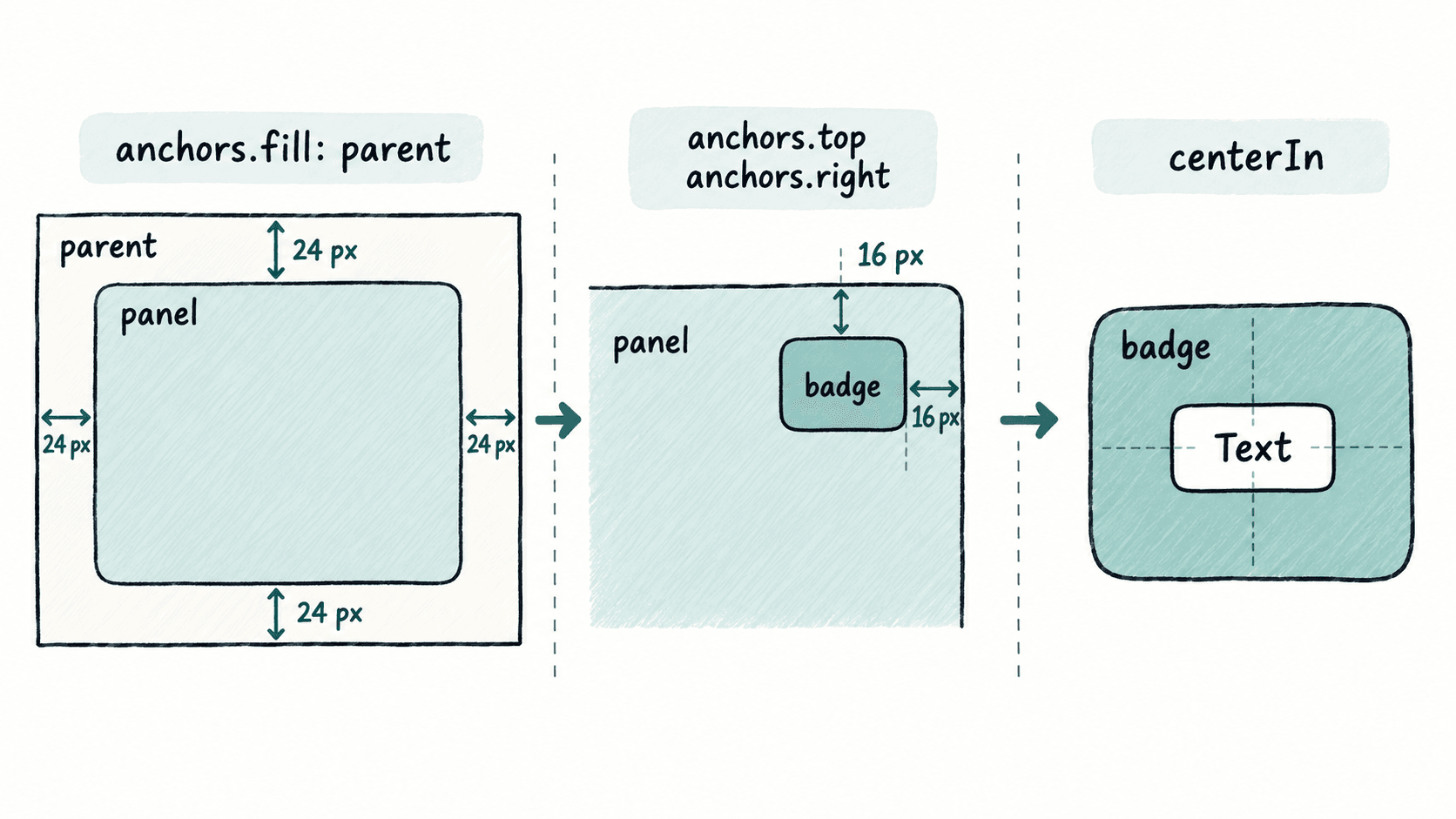
这张关系图要帮助你把“属性名”转成“哪两条边或哪两个中心点被绑定”。写 anchors 时先在脑中确定这条连线,通常比先写 x、y 再不断微调更可靠。
用 margin 控制间距而不是改坐标
边缘锚点确定关系,margin 再确定距离。比如卡片只需要距父项左侧 24 px、底部 20 px,可以设置 anchors.left、anchors.bottom,再分别设置 leftMargin: 24 与 bottomMargin: 20;此时卡片的 x、y 会由锚点关系推导。
需要注意左右两边同时锚定时,元素宽度会由两条边的距离决定。若父项宽 600 px,左右 margin 都是 24 px,那么可用宽度就是 552 px;此时再写 width: 300 不应作为你判断最终宽度的依据。
避免同一轴被两个系统同时控制
最常见的问题不是 anchors 不生效,而是同一属性被多套规则竞争。水平轴上已经用 anchors.left 与 anchors.right 控制位置和宽度,就不要再用 x 去“修正”;垂直轴同理。需要偏移时,用对应的 margin 或 center offset。
如果一个元素已经是 RowLayout、ColumnLayout 或 GridLayout 的直接子项,也不要再用 anchors.fill 去争夺它的几何尺寸;应改用 Layout.fillWidth、Layout.preferredWidth 等 Layout 附加属性。排查时先把窗口改成 360 px 和 960 px 两个宽度:如果元素仍保持预期边距、不会跳位或越界,约束关系才算真正成立。