
游戏引擎 / 系统课时
统一键鼠与触屏控制
统一键鼠与触屏控制
同一个二维角色如果分别在键盘、鼠标和触屏回调里修改位置,很快会出现速度不一致、松手残留和平台分支难维护的问题。本课把设备输入统一成二维移动方向,再由一个移动组件执行位移,让桌面预览和移动端共用同一套角色逻辑。
学习目标
- 把 WASD、方向键和拖动操作转换为统一的移动方向。
- 在 Cocos Creator 3.8 中正确注册、注销输入事件并处理多点触摸。
- 用同一段角色移动代码验证键盘、鼠标和触屏操作。
把设备事件变成移动意图
键盘提供按键的按下与释放;触屏提供触点的起点、当前位置及结束事件;桌面鼠标按住并拖动 UI 触控区时,也可以利用节点触摸事件进行预览。移动系统不应关心这些事件来自哪台设备,而只应读取 Vec2(x, y):横向和纵向均在 -1~1 之间,零向量代表停止。
本例采用“触控区拖动优先,未拖动时读取键盘”的冲突规则,避免同时输入时把两个方向叠加成超速。触摸只追踪首个有效触点,其他手指仍可操作不重叠的 UI。
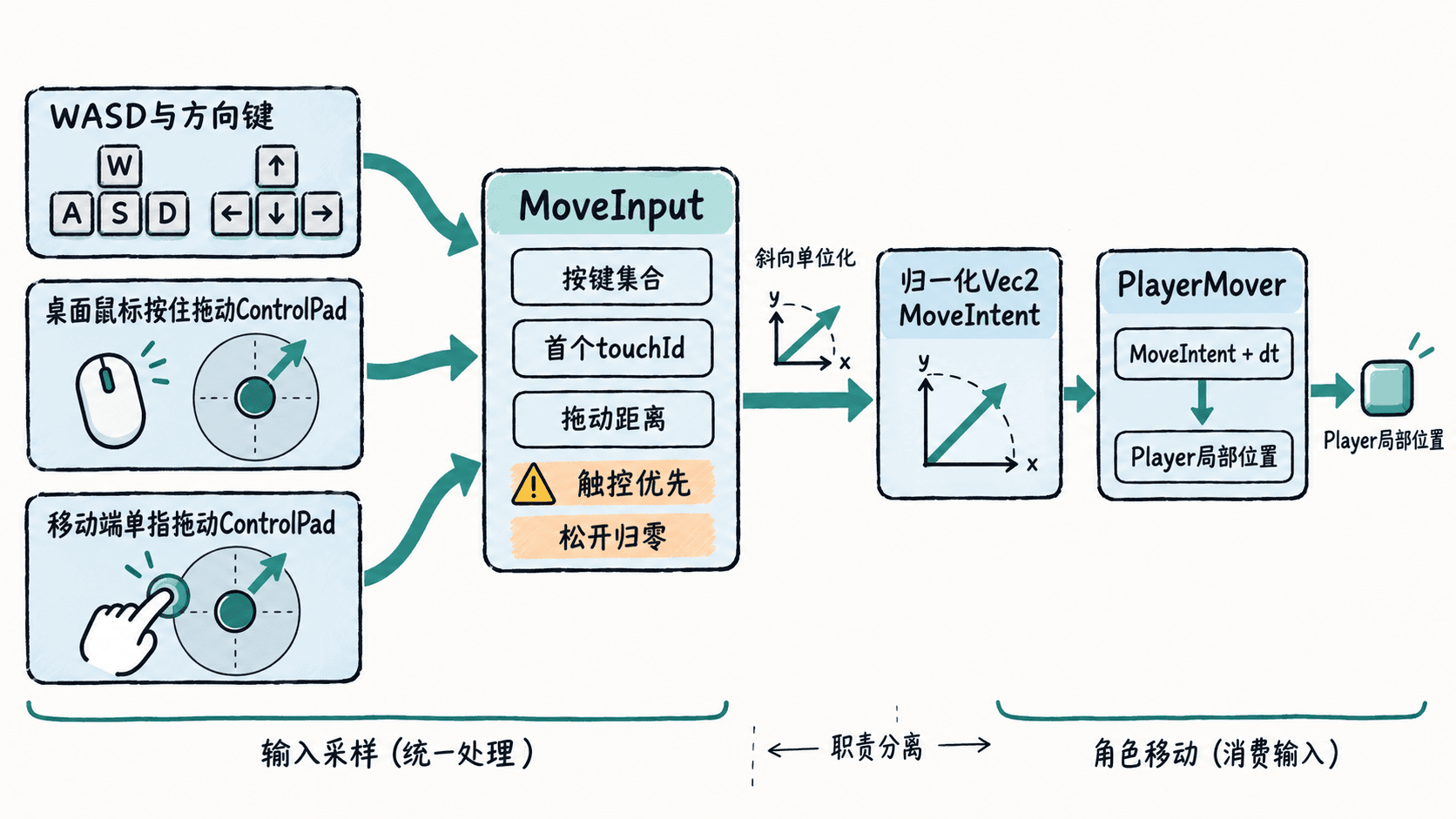
在触控区采集键盘与拖动
在 Canvas 下新建名为 ControlPad 的 UI 节点,保留 UITransform,将它放在左下方并设置约 260×260 的接触区域。脚本 MoveInput.ts 挂在该节点上;键盘使用全局 input,拖动使用节点事件,因此按钮等其他 UI 不必共用全局触摸回调。
import {
  _decorator, Component, EventKeyboard, EventTouch,
  game, Game, input, Input, KeyCode, Node, Vec2
} from 'cc';

const { ccclass, property } = _decorator;

@ccclass('MoveInput')
export class MoveInput extends Component {
  @property dragRadius = 80;

  private readonly held = new Set<KeyCode>();
  private activeId: number | null = null;
  private readonly origin = new Vec2();
  private readonly current = new Vec2();
  private readonly padDirection = new Vec2();

  onEnable() {
    input.on(Input.EventType.KEY_DOWN, this.onKeyDown, this);
    input.on(Input.EventType.KEY_UP, this.onKeyUp, this);
    this.node.on(Node.EventType.TOUCH_START, this.onTouchStart, this);
    this.node.on(Node.EventType.TOUCH_MOVE, this.onTouchMove, this);
    this.node.on(Node.EventType.TOUCH_END, this.onTouchEnd, this);
    this.node.on(Node.EventType.TOUCH_CANCEL, this.onTouchEnd, this);
    game.on(Game.EVENT_HIDE, this.resetInput, this);
  }

  onDisable() {
    input.off(Input.EventType.KEY_DOWN, this.onKeyDown, this);
    input.off(Input.EventType.KEY_UP, this.onKeyUp, this);
    this.node.off(Node.EventType.TOUCH_START, this.onTouchStart, this);
    this.node.off(Node.EventType.TOUCH_MOVE, this.onTouchMove, this);
    this.node.off(Node.EventType.TOUCH_END, this.onTouchEnd, this);
    this.node.off(Node.EventType.TOUCH_CANCEL, this.onTouchEnd, this);
    game.off(Game.EVENT_HIDE, this.resetInput, this);
    this.resetInput();
  }

  private onKeyDown(e: EventKeyboard) { this.held.add(e.keyCode); }
  private onKeyUp(e: EventKeyboard) { this.held.delete(e.keyCode); }

  private onTouchStart(e: EventTouch) {
    const id = e.getID();
    if (id === null || this.activeId !== null) return;
    this.activeId = id; // 只接管首个触点,防止其他手指抢控制权
    e.getUILocation(this.origin);
    this.padDirection.set(0, 0);
  }

  private onTouchMove(e: EventTouch) {
    if (this.activeId === null || e.getID() !== this.activeId) return;
    e.getUILocation(this.current);
    const radius = Math.max(1, this.dragRadius);
    const x = (this.current.x - this.origin.x) / radius;
    const y = (this.current.y - this.origin.y) / radius;
    const length = Math.max(1, Math.hypot(x, y));
    this.padDirection.set(x / length, y / length); // 拖动过远仍保持最大长度1
  }

  private onTouchEnd(e: EventTouch) {
    if (this.activeId === null || e.getID() !== this.activeId) return;
    this.activeId = null;
    this.padDirection.set(0, 0);
  }

  readMove(out: Vec2): Vec2 {
    if (this.activeId !== null) {
      out.set(this.padDirection);
      return out;
    }
    const x = Number(this.held.has(KeyCode.KEY_D) || this.held.has(KeyCode.ARROW_RIGHT))
            - Number(this.held.has(KeyCode.KEY_A) || this.held.has(KeyCode.ARROW_LEFT));
    const y = Number(this.held.has(KeyCode.KEY_W) || this.held.has(KeyCode.ARROW_UP))
            - Number(this.held.has(KeyCode.KEY_S) || this.held.has(KeyCode.ARROW_DOWN));
    const length = Math.hypot(x, y);
    out.set(length > 0 ? x / length : 0, length > 0 ? y / length : 0);
    return out;
  }

  resetInput() {
    this.held.clear();
    this.activeId = null;
    this.padDirection.set(0, 0);
  }
}预期结果:MoveInput 组件编译后可被其他脚本引用;按键或拖动期间读取到方向,在没有其他输入的情况下,释放按键、结束或取消拖动后读到 (0, 0)。它本身不会修改角色位置。
让角色只消费统一方向
新建同目录下的 PlayerMover.ts,挂在二维角色 Player 上,并在属性检查器把 ControlPad 的 MoveInput 组件指定给 inputSource。这里只更新角色相对父节点的 X、Y 位置,不涉及世界坐标转换或刚体物理。
import { _decorator, Component, Vec2, Vec3 } from 'cc';
import { MoveInput } from './MoveInput';

const { ccclass, property } = _decorator;

@ccclass('PlayerMover')
export class PlayerMover extends Component {
  @property(MoveInput) inputSource: MoveInput | null = null;
  @property speed = 220; // 每秒移动的本地坐标单位

  private readonly direction = new Vec2();
  private readonly position = new Vec3();

  update(dt: number) {
    if (!this.inputSource) return;
    this.inputSource.readMove(this.direction);
    this.node.getPosition(this.position);
    this.node.setPosition(
      this.position.x + this.direction.x * this.speed * dt,
      this.position.y + this.direction.y * this.speed * dt,
      this.position.z
    );
  }
}
预期结果:点击预览画面后按 WASD 或方向键,角色沿对应方向持续移动;桌面用鼠标在 ControlPad 按住拖动、手机用手指拖动,也获得相同方向的移动,松开立即停止。在未碰到关卡限制的条件下,speed=220 表示沿单一方向持续输入约 1 秒移动 220 个本地单位。
连接场景并检查冲突
将 Player 与 ControlPad 放在同一个 Canvas 中;角色应能在 X、Y 平面移动,ControlPad 必须具有能接收触摸事件的 UITransform。键盘操作先点击游戏预览区域,使网页获得输入焦点;触控区不要覆盖攻击、暂停等按钮,避免输入竞争。
按住 W+D 时速度不应比只按 W 更快,因为方向已归一化;同时按住键盘并拖动时以拖动为准;第二根手指不应改变移动方向;拖动到区域外并结束时应触发结束或取消清理。桌面预览中的鼠标按住拖动通过节点触摸事件进行模拟,不需要为同一触控区重复注册鼠标与触摸回调,否则可能重复处理。若进入暂停界面,也应主动调用 resetInput(),不要只依赖后台事件。