
Web 图形与 3D / 系统课时
精简后处理链路与渲染目标
精简后处理链路与渲染目标
场景模型不多也会掉帧:Bloom 和色调处理可能对整张屏幕重复绘制。本课用可运行的 EffectComposer 实验,分别测量 Pass 的 GPU 耗时,只缩小 Bloom 缓冲区,再通过画质与帧时间对照决定删留。
学习目标
- 分清场景渲染、特效缓冲区与最终输出的开销。
- 使用 WebGL2 GPU 时间查询分别采样三个 Pass。
- 正确缩放 Bloom 的 RenderTarget,并验证删除特效后的收益。
看清每一段绘制与缓冲区
EffectComposer 按加入顺序执行 Pass。典型链路是 RenderPass 把场景写入中间目标,UnrealBloomPass 提取高亮区域、进行多级模糊并叠加结果,OutputPass 完成色调映射与输出色彩空间转换。Bloom 内部含多张纹理,不能把一个 Pass 误当成一次绘制。
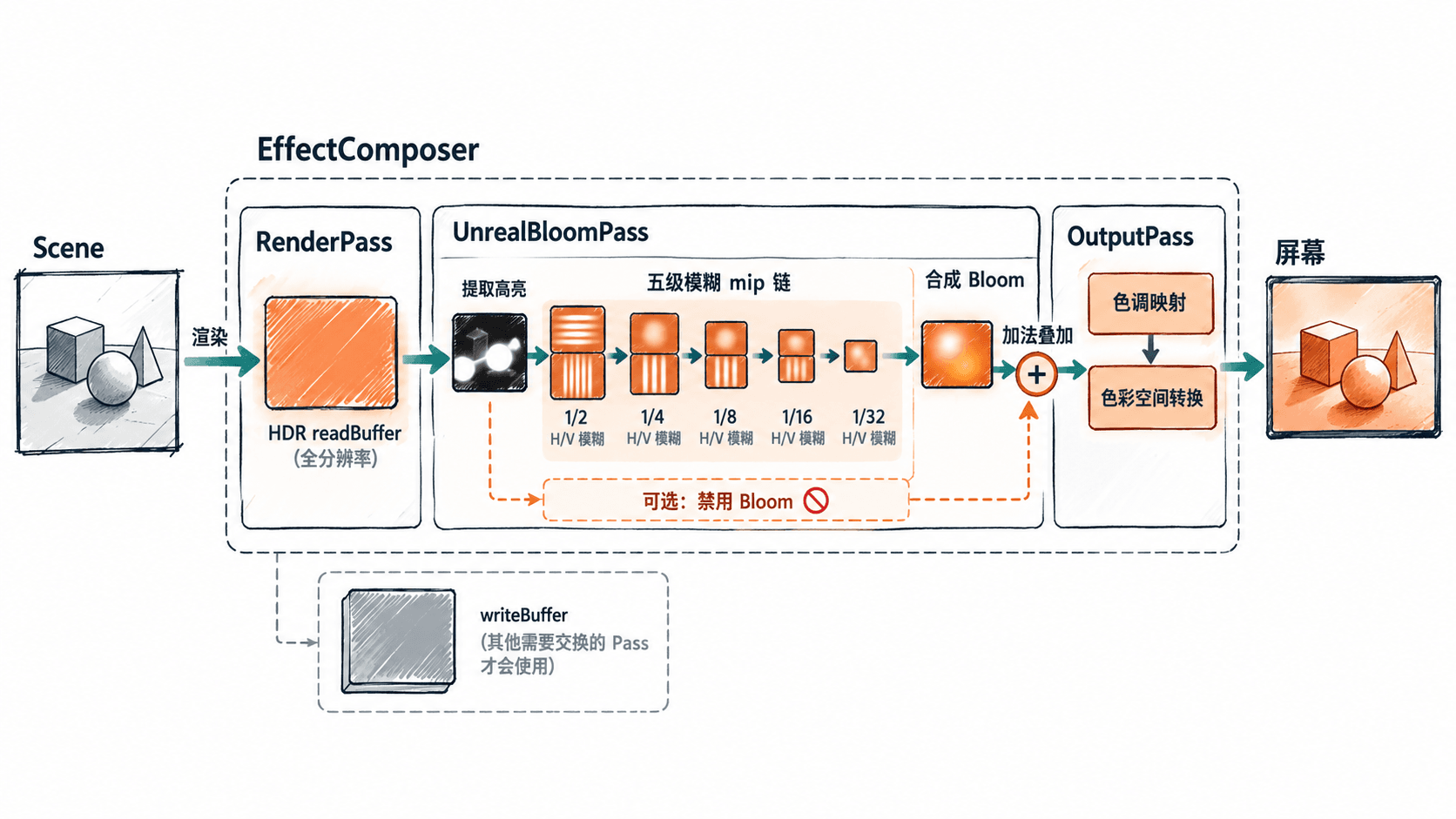
在 DPR 为 1、画面为 1920×1080 时,一张 RGBA16F 颜色纹理按每像素 8 字节计算,约占 15.8 MiB;Composer 的两张同尺寸颜色缓冲区约 31.6 MiB,尚未计深度附件与 Bloom 的额外纹理。减半宽高意味着像素数降为原来的四分之一,但不保证 GPU 耗时也精确降为四分之一。
逐通道测量实际 GPU 时间
下面示例使用 Three.js 0.180.0(r180)、WebGL2。将完整代码保存为 index.html,在该目录运行本地服务器,再用浏览器打开页面。按 B 启用或禁用 Bloom,按 R 在默认和低分辨率 Bloom 之间切换;其他场景参数保持不变。
python3 -m http.server 8000预期输出(<HOST> 是系统实际监听地址):
Serving HTTP on <HOST> port 8000 ...随后访问 http://localhost:8000;Windows 若只有 Python Launcher,可把命令中的 python3 改为 py。
<!doctype html>
<html lang="zh-CN">
<head>
  <meta charset="utf-8">
  <meta name="viewport" content="width=device-width,initial-scale=1">
  <style>html,body{margin:0;width:100%;height:100%;overflow:hidden}</style>
  <script type="importmap">
  {
    "imports": {
      "three": "https://unpkg.com/three@0.180.0/build/three.module.js",
      "three/addons/": "https://unpkg.com/three@0.180.0/examples/jsm/"
    }
  }
  </script>
</head>
<body>
<script type="module">
import * as THREE from 'three';
import { EffectComposer } from 'three/addons/postprocessing/EffectComposer.js';
import { RenderPass } from 'three/addons/postprocessing/RenderPass.js';
import { UnrealBloomPass } from 'three/addons/postprocessing/UnrealBloomPass.js';
import { OutputPass } from 'three/addons/postprocessing/OutputPass.js';

const scene = new THREE.Scene();
scene.background = new THREE.Color(0x050816);
const camera = new THREE.PerspectiveCamera(50, 1, 0.1, 100);
camera.position.z = 4;
scene.add(new THREE.HemisphereLight(0xffffff, 0x223355, 1.2));

const mesh = new THREE.Mesh(
  new THREE.IcosahedronGeometry(1.2, 3),
  new THREE.MeshStandardMaterial({
    color: 0x1688ff, emissive: 0x00ccff, emissiveIntensity: 2.5
  })
);
scene.add(mesh);

const renderer = new THREE.WebGLRenderer({ antialias: false });
renderer.toneMapping = THREE.ACESFilmicToneMapping;
renderer.setPixelRatio(Math.min(window.devicePixelRatio, 2));
document.body.appendChild(renderer.domElement);

const composer = new EffectComposer(renderer);
const scenePass = new RenderPass(scene, camera);
const bloom = new UnrealBloomPass(new THREE.Vector2(innerWidth, innerHeight), 0.9, 0.3, 0.75);
const outputPass = new OutputPass();
composer.addPass(scenePass);
composer.addPass(bloom);
composer.addPass(outputPass);

const gl = renderer.getContext();
const ext = gl.getExtension('EXT_disjoint_timer_query_webgl2');
const samples = new Map();
const pending = [];
let frame = 0;
let bloomScale = 1;

function clearSamples() {
  for (const item of pending) gl.deleteQuery(item.query);
  pending.length = 0;
  for (const s of samples.values()) { s.total = 0; s.count = 0; }
}

function profile(name, pass) {
  samples.set(name, { total: 0, count: 0 });
  const original = pass.render.bind(pass);
  pass.render = (...args) => {
    // 间隔四帧采样,避免每帧都创建 GPU 查询。
    if (!ext || frame % 4 !== 0) return original(...args);
    const query = gl.createQuery();
    if (!query) return original(...args);
    gl.beginQuery(ext.TIME_ELAPSED_EXT, query);
    try { return original(...args); }
    finally {
      gl.endQuery(ext.TIME_ELAPSED_EXT);
      pending.push({ name, query });
    }
  };
}

profile('RenderPass', scenePass);
profile('Bloom', bloom);
profile('OutputPass', outputPass);

function collectGpuTimes() {
  if (!ext) return;
  // GPU 计时发生 disjoint 时,这批结果全部丢弃。
  if (gl.getParameter(ext.GPU_DISJOINT_EXT)) {
    clearSamples();
    return;
  }
  for (let i = pending.length - 1; i >= 0; i--) {
    const { name, query } = pending[i];
    if (!gl.getQueryParameter(query, gl.QUERY_RESULT_AVAILABLE)) continue;
    const s = samples.get(name);
    s.total += gl.getQueryParameter(query, gl.QUERY_RESULT) / 1e6;
    s.count++;
    gl.deleteQuery(query);
    pending.splice(i, 1);
  }
}

function resize() {
  const w = window.innerWidth, h = window.innerHeight;
  camera.aspect = w / h;
  camera.updateProjectionMatrix();
  renderer.setSize(w, h);
  composer.setSize(w, h);
  // Composer 自动重设所有 Pass 尺寸,因此最后单独缩放 Bloom。
  const ratio = renderer.getPixelRatio();
  bloom.setSize(
    Math.max(1, Math.round(w * ratio * bloomScale)),
    Math.max(1, Math.round(h * ratio * bloomScale))
  );
  clearSamples();
}

window.addEventListener('resize', resize);
window.addEventListener('keydown', (event) => {
  if (event.repeat) return;
  if (event.key.toLowerCase() === 'b') {
    bloom.enabled = !bloom.enabled;
    clearSamples();
    console.log(`Bloom enabled: ${bloom.enabled}`);
  }
  if (event.key.toLowerCase() === 'r') {
    bloomScale = bloomScale === 1 ? 0.5 : 1;
    resize();
    console.log(`Bloom scale: ${bloomScale}`);
  }
});

resize();
if (!ext) console.warn('不支持 GPU 计时扩展,请做固定场景 A/B 帧时间测试');

renderer.setAnimationLoop(() => {
  frame++;
  mesh.rotation.y += 0.005;
  composer.render();
  collectGpuTimes();
  if (ext && frame % 120 === 0) {
    const parts = [...samples].filter(([, s]) => s.count > 0)
      .map(([name, s]) => `${name}: ${(s.total / s.count).toFixed(3)} ms`);
    if (parts.length) console.log(`GPU Pass: ${parts.join(' | ')}`);
    clearSamples();
  }
});
</script>
</body>
</html>
预期结果:页面出现持续旋转的发光几何体;支持计时扩展时,开发者工具 Console 大约每 120 帧显示一次各通道 GPU 均值,形式如下(<TIME> 是随设备变化的毫秒数):
GPU Pass: RenderPass: <TIME> ms | Bloom: <TIME> ms | OutputPass: <TIME> ms计时查询是异步读取的,QUERY_RESULT_AVAILABLE 未就绪时不强制等待 GPU;GPU_DISJOINT_EXT 为真则丢弃样本。没有扩展时,不能拿 performance.now() 包住 pass.render() 就声称测到了 GPU 着色耗时;应改用同样场景的整体帧时间对照与 GPU 分析工具。先预热数秒,再记录至少三轮同长度窗口,避免首次编译着色器混入结果。
降低 Bloom 目标分辨率
示例中的 bloomScale 只影响 UnrealBloomPass 内部亮部提取和模糊缓冲区,不会主动降低场景渲染目标与最终画布分辨率。r180 的 Bloom 首张亮部缓冲区本身就从传入宽高减半生成,因此再次把传入尺寸设为 0.5 倍后,该缓冲区相对 Composer 宽高变为四分之一。
| Composer 尺寸(DPR=1) | bloomScale |
Bloom 首张亮部缓冲区 |
|---|---|---|
| 1920×1080 | 1 | 960×540 |
| 1920×1080 | 0.5 | 480×270 |
按 R 比较光晕轮廓是否出现明显块状、边缘断层或扩散范围变化。不要把 composer.setPixelRatio(0.5) 视为等价方案:它会同时降低 RenderPass 及其他通道的渲染精度,容易让整个场景变糊。调整大小时先调用 composer.setSize(w, h),再对需要低分辨率的 Pass 调用它自己的 setSize(...);否则 Composer 的自动调整会覆盖优化。
用 A/B 测试决定删掉什么
先保持 bloomScale=1,记录正常开启时三轮 GPU 通道均值与整体帧时间;按 B 关闭 Bloom,再以相同窗口重测。随后恢复 Bloom,按 R 将尺寸降到 0.5 比较。不要在一次窗口内拖动浏览器尺寸,画面与运动速度也要保持相同。以 60 FPS 为目标时整帧预算约 16.7 ms,并非允许每个 Pass 都占 16.7 ms。
| 方案 | 观察 GPU 时间 | 检查画质 | 处理 |
|---|---|---|---|
| 完整链路 | 作为基线 | 光晕完整 | 先保留 |
| Bloom 缓冲减半 | 对比 Bloom 的 GPU 均值和整帧 | 亮部边缘无明显瑕疵 | 优先试用 |
| 禁用 Bloom | 对比整帧节省量 | 关键视觉效果是否丢失 | 收益明显且画质可接受才删除 |
正式移除时,删除初始化阶段的 composer.addPass(bloom);如果是在运行时永久移除,依次执行 composer.removePass(bloom) 与 bloom.dispose()。只设置 bloom.enabled = false 是对照实验,不会释放 Bloom 已分配的 RenderTarget。通常应保留链尾 OutputPass 来完成正确的色调映射和色彩空间输出。
API 详情可查阅 EffectComposer 文档 与 UnrealBloomPass 文档。验收时同时核对三件事:各 GPU 通道的重复采样结果、固定镜头下的总体帧时间,以及发光边缘和明暗层次的对比截图。若差异落在测量波动内,就不要以降低画质换取没有证据的性能收益。